Your dashboard
The first screen after you sign in: your VAT quarter and its deadline at a glance, what needs you and what arrived since you last looked, what is ready for your ledger, bills by due date, suppliers yet to send this quarter's bill, spend and VAT, activity, and one search bar across every document.
Last updated 9 October 2026 · 9 min read
What the dashboard is for
The Dashboard is the first screen you see after signing in. It answers the questions most people ask at the start of a working day: what needs me, what has arrived, what is ready to go to the ledger, which bills fall due soon, is the VAT return ready and when is it due, how much have we spent, how long will our credits last, and who did what. Every number on it comes from the documents already saved in your workspace, and it refreshes by itself about once a minute while you have it open.
Everyone in the workspace sees the dashboard, viewers included. Nothing on it changes your records: every card takes you to the screen where the work is done.
The top of the screen
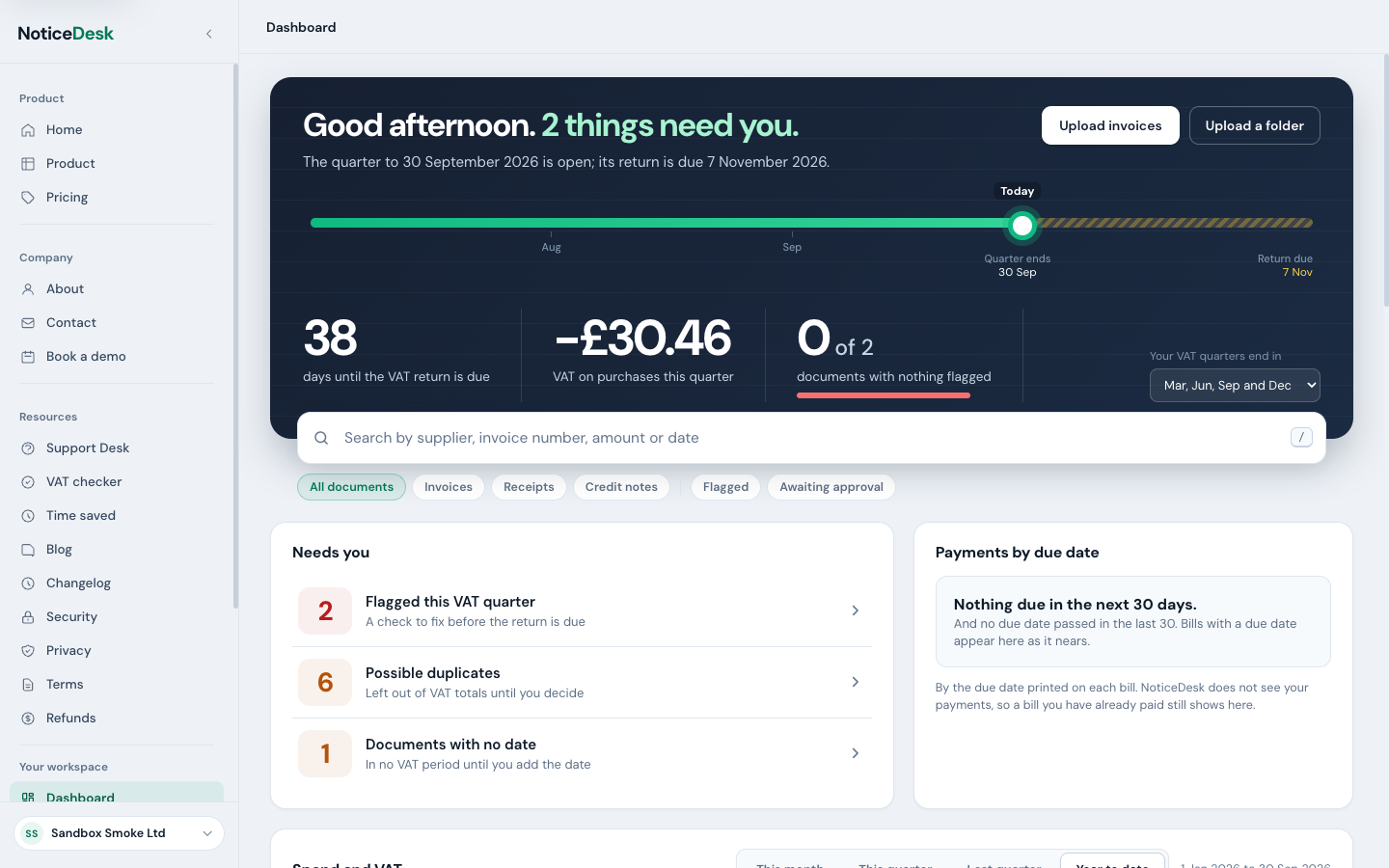
The dark band at the top says how many documents need you and where the VAT return stands. A document waiting in two places (flagged and awaiting your approval, say) counts once. The line across it is your VAT quarter: it runs from the first day of the quarter to the return deadline, which is one calendar month and seven days after the quarter ends. The solid part is the quarter, the striped part is the time left before the return is due, and the dot is today. Once a quarter has ended, the band stays on it until its deadline has passed, then moves on to the next.
Under the line are three figures for the quarter: the days until the return is due, the VAT on purchases, and how much of that VAT is on documents with nothing flagged, in pounds, with the VAT on flagged documents still to fix beneath it. If credit notes take the quarter's VAT below zero, the figure says it is net of credit notes. These figures follow the same rules as the VAT Invoice Check, so the two screens always agree. On plans without the VAT Invoice Check the band shows the countdown but not the other two, which are part of the VAT Check.
NoticeDesk does not know which months your VAT quarters end in, so an owner or admin sets them once for the whole workspace: choose the months and Save. After that the band names them, and owners and admins can Change them. Until they are set, everyone else sees the months the dashboard is assuming. Upload invoices and Upload a folder take you straight to Extract and Batch upload.
Beneath them is your workspace's email-in address, with Copy: forward a bill to it and it arrives in the workspace like an upload. Owners, admins and members see it; viewers do not, because they cannot add documents. If the workspace has no address yet, owners and admins see Set up an email-in address instead.
Needs you
At the top of the card, Since you last looked says how many documents have arrived since your last visit on this browser, how many came by email and how many are flagged. It stays away when there is nothing new and you looked in only minutes ago.
Below it is a list of what is waiting, the most pressing first, each with its count. Select one to go where you deal with it:
- Flagged this VAT quarter: documents with a failed check, the same ones the VAT Invoice Check lists as flagged (on plans that include it). Under the count are the most common reasons and how many documents each affects; a document can have more than one, so they need not add up to the count.
- Awaiting your approval and Rejected, back with you: approval requests you need to decide, and rejections you need to rework. See the approval workflow.
- Worked-out figures waiting: figures NoticeDesk worked out that nobody has accepted or rejected yet. See worked-out figures.
- Possible duplicates: documents flagged as a likely repeat, left out of VAT totals until you decide. See duplicates.
- Documents with no date: they belong to no VAT period until you add the invoice date.
- Uploads that could not be read in the last seven days.
When every queue is empty the list becomes one green line saying nothing needs you.
Approvals you asked for that someone else has yet to decide are not yours to act on, so they are not in the list. A quiet line under it says how many are waiting on someone else; select it to see them in History.
Ready for your ledger
Beside that list: how many saved documents have not yet been exported to a ledger file, what they add up to, and when the oldest was saved. On plans that include the VAT Invoice Check it also splits the ones in this VAT quarter into those with nothing flagged, ready to export, and those flagged, to fix first. Show them in History opens History on exactly those documents, with a Never exported filter you can remove. While that filter is on, History lists the documents one by one, never under their batch headers, so no batch Export takes in documents already exported. A document counts as exported once anyone in the workspace has downloaded it in any export format.
Bills by due date
Your bills by the due date printed on them: how many fall due in the next 7 days and how many in the 8 to 30 days after, with the totals in pounds. The bills due in the next week are listed underneath; select one to open it. NoticeDesk does not see your payments, so a bill you have already paid still shows here, and a bill past its date is not listed as overdue. Credit notes are not included.
Quarter completeness
Suppliers who sent at least three bills across the two quarters before this one, but none dated this quarter yet. It is a nudge to check whether a bill arrived by post or is still to come, not a sign that money is owed. Select a name to search for it. When every regular supplier has a bill this quarter, it says so in one line.
Spend and VAT
Below a divider marked Insights is the look back. Four figures for the chosen period (spend, VAT on purchases, documents and credit notes), each compared with the same number of days in the period before, so the 20th of this month is compared with the 20th of last month rather than with the whole of it. When the period before had fewer than ten documents, the change is shown in pounds or documents rather than as a percentage, which would say little on so few. The tabs choose the period: This month, This quarter, Last quarter or Year to date, and your choice is remembered on this browser.
The chart below shows spend by day, or by week for the year to date, with the whole of the period before as lighter columns behind it. Hover over a column, or select the chart and use the arrow keys, to read a single day against the period before.
These totals follow the same rules as the VAT Invoice Check, so the two screens always agree:
- A document counts in the period of its invoice date, not the day you uploaded it.
- Only pounds sterling are added up. A document in another currency is counted and named under the chart, never converted.
- A credit note is taken off spend and VAT.
- A possible duplicate is left out until you decide.
Top suppliers lists your five largest suppliers for the period with their share of your spend. A supplier whose latest VAT registration check found the number not on the VAT register, or registered under a different name, is marked so; a check that could not run never marks anyone. New this period marks a supplier whose first bill falls in the period, once the workspace has documents from before it. Select a name to search for it.
Credits
How many credits you have left, plan and top-up together, and how long they will last at the pace you have used them so far this period. Owners and admins see Buy credits and See plans here. See credits and top-ups.
Workspace activity
A timeline of what has happened in the workspace, newest first: documents uploaded or received by email, edits, approvals and rejections, exports and deletions. An edit names the fields that changed but never shows their values; the record's own timeline in History has the full detail. Uploads by the same person on the same day fold into one line you can open, and so do several exports or approvals by one person within a few minutes. Select a document to open it read-only, and Show earlier activity to go further back.
Searching
The search bar looks across every saved document in the workspace. Press / anywhere on the dashboard to jump to it. It understands:
- a supplier name, or part of one, whatever its spacing;
- an invoice number;
- a VAT number, with or without spaces;
- an amount, such as
£1,250or1250, matched to the document total to the penny; - a date, such as
15/03/2026, or a month, such asMarch 2026.
Results are grouped into suppliers and documents. When very many supplier names match, the ones with the most documents are listed and the list says so; type more of the name to narrow it. Use the arrow keys to move through them, Enter to open one and Esc to close the list. The chips under the bar narrow the search to invoices, receipts or credit notes. Flagged documents and approvals have their own lines in Needs you. To see every match with History's own filters, choose Search History for suppliers matching at the bottom of the list.
What you see depends on your plan and role
- No plan yet: there are no upload buttons. Owners and admins are asked to choose a plan; everyone else is told to ask them. Your history and exports stay available.
- Out of credits: the upload buttons give way to a note. Owners and admins can buy credits or see plans from it.
- Payment problems, a plan ending, or a trial ending within three days: owners and admins see a short note in the dark band with the one thing to do.
- Bronze: Upload a folder shows with a Silver+ mark, because batch upload comes with Silver and above; selecting it shows the plans.
- Plans without the VAT Invoice Check: the band shows the countdown but not the VAT figures, and Ready for your ledger does not split this quarter's documents.
- Plans without approvals: an approval left over from an earlier plan still shows, says your plan no longer includes approvals, and opens in History, where the person who asked can cancel it.
- Viewers see everything except the upload buttons, the email-in address and billing notes.
Until the first documents are saved, the dashboard shows a welcome panel with Upload your first invoice and Upload a folder. It fills in as soon as you start working.