Email invoices straight into NoticeDesk
Give your workspace its own receiving address. Anything emailed to it lands in NoticeDesk, checked and filed, with a receipt back to you.
Last updated 9 October 2026 · 10 min read
What it is
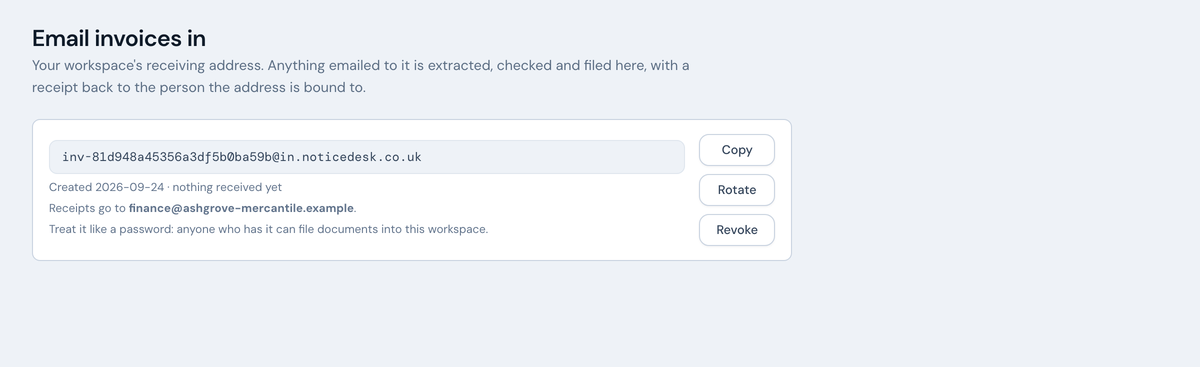
Email-in gives your workspace its own receiving address: it looks like inv-…@in.noticedesk.co.uk. The everyday use is the simplest one: when a supplier invoice lands in your inbox, forward it. Nothing about how your suppliers bill you has to change. Attach or forward invoice PDFs or photos (JPEG, PNG, WEBP or HEIC), and each attachment is processed exactly like an upload in the app: extraction, the compliance checks, and a place in History.
Treat it like a password, not a phone number. Anything sent to it lands in your workspace and uses your credits, so keep it to you and your team, and if it spreads further than you meant, rotate it (below) and the old address stops working instantly. Giving it to a supplier is a deliberate step with its own trade-offs; there's a section on that below.
Set it up
-
Open Email-in
It's in the sidebar for owners and admins: creating and managing the address is a workspace-management job, though anyone who has the address can send to it.
-
Create your address
Press Create address. Copy the address from this screen whenever you need it. On plans that allow more than one, Add another address sits below the list; see More than one address below.
-
Forward your first invoice
Save the address as a contact so it's one tap from your mail app. When an invoice arrives, forward it: that's the whole workflow. If your invoices land in a shared accounts inbox, a forwarding rule there does it for you.
What happens to each email
An email with several attachments lands as one grouped batch in History (grouped under the email's subject, just like a multi-file run in the app) on plans that include batch. On other plans only the first attachment is processed, and the receipt says so plainly: batch is included on Silver plans and above.
The sender gets no reply, whoever they are. Instead, after each email the person the address is bound to (named under it on the Email-in screen) receives a receipt listing what happened to every attachment:
- Processed. Sign in to NoticeDesk to review it: extracted and in History.
- Skipped. This exact file is already in your workspace: the same file was processed before, so nothing was spent on it again.
- Not processed. We couldn't read this one well enough to file it: upload that one in the app, where you can review the extraction and correct it before saving. (The review-and-correct step needs the file in front of you, so it only exists for uploads.)
- Not processed. We read this one but couldn't file it as it came back: rare, for a document with a value we can't store as it came back (a very long supplier name, say). Sending it again would do the same, so upload that one in the app: the review step there names the value, and you can correct it and save the record.
- Not processed, with the reason: the file didn't open as a readable PDF or image, the file is too large to process (a photo over 48 megapixels or 14 MB, or a PDF over 100 pages: send a smaller copy, or split the PDF), the PDF is password-protected (save or print it to PDF without the password and send it again), the PDF looks blank, the workspace is out of credits (or out of credits with a payment that didn't go through, when an owner or admin needs to update the card), it doesn't have a plan yet, it has reached one of its limits for now (send it again later), NoticeDesk was busy when the email arrived (send it again in a few minutes; nothing was charged), NoticeDesk couldn't read it just now (send it again; if it happens again, re-save the file and send it or upload it in the app), or the plan processes only the first attachment per email.
Screenshots and photos in the body of an email are read like attachments (the iPhone Mail app sends even an attached photo this way). Logos, banners and email signatures in the body are not read. When an email has both, its attached files are read first and the images from the body after them. The receipt names up to three of the images it skipped; if one of them was a receipt or an invoice, send it again as a PDF or a full-size photo, or attach it as a file.
The attachment itself isn't kept. Once it has been processed the file is deleted from our servers and only the extracted data stays, so keep your own copy of the invoice (see the Privacy Notice).
If a processed document looks like a possible duplicate of an invoice already in your workspace, the receipt flags that too: worth a look before anyone pays it.
Advanced: letting a supplier send to it directly
You can give the address to a supplier: when you set up a new account with them, put it in as the billing email and their invoices arrive without anyone forwarding anything. It works, and for a supplier who bills you every month it saves a step. But it is a bigger decision than adding a forwarding rule, so go in with these three things in mind:
- Anyone with the address can spend your credits. Anything sent to it is processed and uses your credits. That is fine for a supplier you have a real billing relationship with; it is not something to publish, put on a website, or hand out casually.
- There is no per-sender off switch. The address doesn't check who sent the mail, so you can't stop one supplier without stopping everyone. If you need to cut one off, you rotate, and then every other sender needs the new address too.
- Keep your own copy of the invoice. When you forward, the original stays in your mailbox. When a supplier sends straight to us, it may not, and the invoice itself is part of your VAT records, not just the figures we extract from it. Worth agreeing with your supplier that they also copy you, or checking with your accountant how you want to hold those.
If that sounds like more than you need, stick with forwarding: it gets you the same result with none of this to think about.
More than one address
Email-in itself is on every plan, including the entry tier: one receiving address per workspace, which is all most businesses need. What higher plans add is more of them: 3 receiving addresses on Gold plans and above, and 10 on Scale.
Separate addresses are worth having when mail needs to arrive already sorted:
- Several trading entities. One address per company, so invoices land against the right set of books without anyone sorting them by hand.
- A bookkeeper with several clients. One per client, given to that client's suppliers.
- Sites, branches or departments. One per site, so the receipt goes to whoever owns that site's spend.
Each address is independent: it is bound to its own person, sends its own receipts, and has its own Rotate and Revoke. Revoking one leaves the others working. The Email-in screen shows how many of your allowance are in use, and Add another address appears while a slot is free. If all of them are in use, revoke one to free a slot.
If you move to a plan with a smaller allowance, nothing is switched off: every address you already have keeps receiving and processing mail (a supplier who has your address must never find it bouncing). The screen shows an amber note instead, "You have 3 addresses; your plan includes 1. They all keep working. Revoke one to add another", and Add another address stays hidden until you are back within the allowance. Rotate still works on any of them.
Everything arriving at any of your addresses draws on the same workspace credits, and everything lands in the same History.
Rotate and revoke
Rotate replaces an address instantly: a new one is created and the old one stops working the moment you confirm. Update your forwarding rules, and if you've given the address to any suppliers, send them the new one. Revoke turns that address off: anything sent to it is ignored from then on. If it was your only address, that turns email-in off for the workspace until you create a new one; if you have others, they carry on unaffected.
Rotate on the same schedule you'd change any shared credential: when someone leaves, when a supplier relationship ends, or whenever you're not sure who has it.
When the person who created an address leaves
Receipts go to the person an address is bound to, and the documents it receives are filed under their name. That is whoever created it, or last rotated it; the Email-in screen names them under each address (Receipts go to). If that person is removed from the workspace, leaves it, or is changed to a viewer, the address is handed to the owner or admin who made the change (or, if they left by themselves, to the workspace's oldest owner). Mail to it keeps arriving, and the Email-in screen says Receipts now go to the new person. Nothing needs re-sending, and no supplier needs a new address. If you would rather the receipts went to someone else, Rotate the address while signed in as that person: a rotated address is always bound to whoever rotates it.
If a receipt doesn't arrive
An email sent to an unknown or revoked address does nothing at all: nothing is processed and no reply is sent, on purpose. So a missing receipt usually means one of:
- The address was revoked, or the sender is using the old address after a rotate; resend to the current address shown on the Email-in screen.
- The email had no readable attachments: a receipt is still sent for that case, telling you nothing was processed. If you can't see it, check your spam folder too.
- The email had several attachments and one is still being read: the receipt waits until every attachment has an outcome, so a slow one can hold it back for a few minutes. If one never finishes, the receipt is sent after about ten minutes, two more for each further attachment, and says how many it is still waiting on; when a late one does finish, a short follow-up names it (the file name is in the body of that follow-up, never in its subject line), unless the address has reached its daily limit below.
- The address has reached its daily limit: after 50 receipts and follow-ups in a day (UTC), we stop sending them until midnight UTC, and the person the address is bound to gets one email saying so. Receipts for emails with a processed attachment still arrive. Everything sent is still received and processed; for anything you can't see in History, upload it in the app or send it again the next day.
- The person the address is bound to can no longer receive on this workspace. If they left, were removed, or became a viewer before the hand-on above was introduced, the address was not handed on, and mail to it is ignored. It is the date they left that matters, not when the address was created. The Email-in screen marks such an address Receipts cannot be delivered; Rotate it and it is bound to you.