Batch upload & folder drop
Up to 50 invoices in one run. Drop a folder, fix what needs fixing, and export the lot.
Last updated 9 October 2026 · 7 min read
What a batch is
Select several files at once (or drop a whole folder) and NoticeDesk processes them as one run: up to 50 files, each becoming its own full extraction with its own compliance checks and its own History row. Batch upload is included on Silver plans and above.
Run a batch
-
Drop the files, or the folder
Multi-select files onto the Extract dropzone, use the Batch upload screen, or drag a folder straight in: NoticeDesk digs through it for supported files (PDF, JPEG, PNG, WEBP, HEIC) and queues them. A folder of last quarter's invoices is the classic case. A dropped folder holding more than 50 supported files starts a batch of the first 50 in folder order and tells you how many it found and how many were left out, so you can drop the rest as the next batch; this is the same on the Extract dropzone and on the Batch upload screen. A very large folder (thousands of items, a whole Documents folder) is not searched to the end: NoticeDesk stops looking after 2,000 items, tells you the search stopped, and starts the batch from what it found, so drop a smaller folder to be sure nothing is missed.
-
Watch the run
A progress band tracks the queue file by file. One document that can't be read doesn't stop the run: it's counted as Skipped with the reason shown on its row, and everything else continues. Some things do stop it, because every file after them would fail the same way: running out of credits, the daily upload or processing limit, NoticeDesk itself being limited for the moment, the pause after too many uploads couldn't be read in a day, and a sign-in that couldn't be renewed for a moment (you'll see one notice, and the band reads Stopped). The files not reached are marked Not processed with the reason, so you can drop them again once it's sorted. The per-minute upload limit only pauses the run: the band counts down and the same file is tried again, and only if the limit is still in place after five waits does the run stop, with that file marked Upload limit still in place after five waits. A run in which no file could be read ends with Batch finished: no invoices read, never Batch complete. A fresh drop is refused while a run is still going, so you can't clobber it by accident.
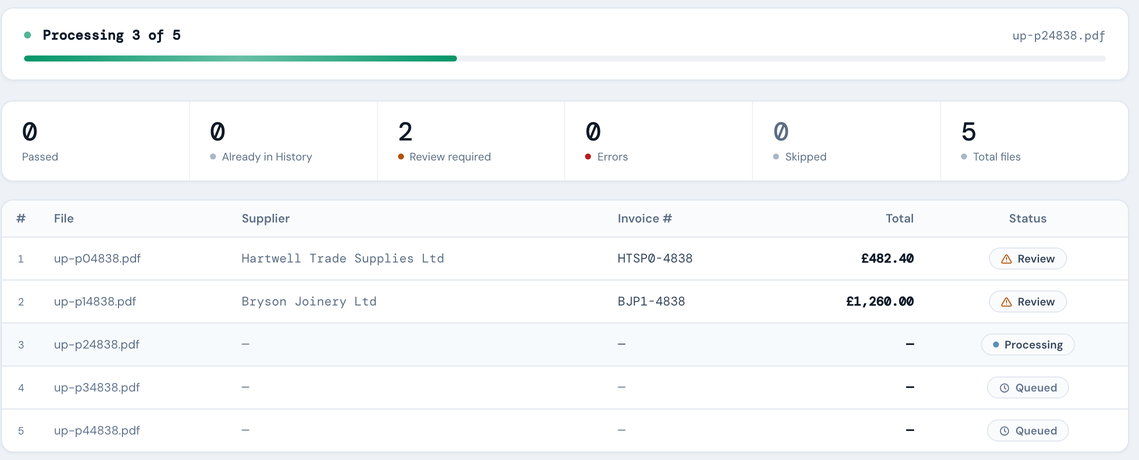
Mid-run: finished files already show their verdicts while the queue works on. Open one and come back: the run carries on to the last file. -
Read the summary
When the run settles you get the roll-up: Passed · Already in History · Review required · Errors · Skipped · Total files. A file you had already processed in an earlier run counts under Already in History rather than Passed. It wasn't run again, wasn't charged, and its figures are left out of the spend insights. A file flagged as a possible duplicate is left out of them too, and the total spend label says how many. Below the roll-up sits the insights band: total spend, VAT extracted, unique suppliers, how many need review, the date range covered, spend by supplier, and the check that failed most often.
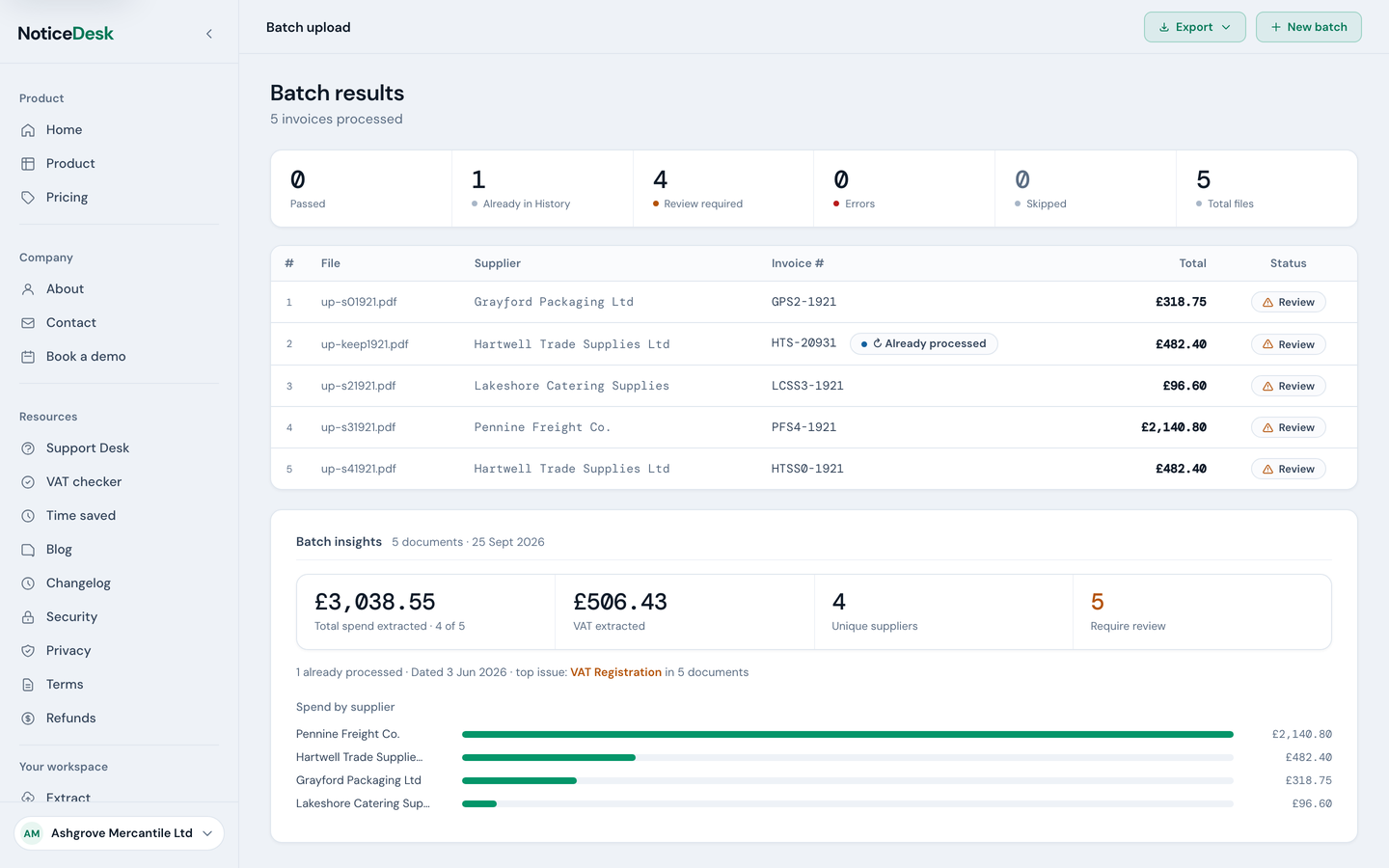
A settled batch: the stats band, the insights, and every file's own result underneath. -
Fix the ones that need it
Click any row to drill into the full Extract view: same fields, same compliance card, fully editable. A strip of chips above the record names every file in the batch with its state (Read ✓, Reading…, Queued, Manual review, Failed, Skipped); click a chip to move to that document, and the top-bar chip counts how many are read. Save writes that document's corrections, and the batch summary updates to match when you go back. A row marked Manual review opens the manual review screen instead, in the shape that run left it in: a read that could not be kept for saving leads with Try extraction again and does not offer Save this read, on that visit and on every later one. Leaving a drill-in with unsaved edits warns you first, whichever way you leave: going back, clicking another file's chip, starting a new extraction, or dropping or choosing another document over it. If that file's own save is still on its way, the warning asks you to wait a moment for it to finish instead. A save that is still in flight when you move to another file finishes on its own and a small note confirms which invoice was saved (the file you moved to has its own Save changes, unaffected by it); the batch table, its stats and that file's chip update the moment it lands. If you open that same file again before it lands, the record on screen shows the figures being saved, with the label reading Saving…, and anything you edit there sits on top of them, so your next Save changes keeps both. A record you have not touched refreshes to the saved copy when it lands; if you are typing in a field at that moment, the refresh waits until you leave the field, what you typed is kept, and your cursor lands in the field you moved to. An identical copy of that file in the same batch is the same record, so it updates with it and you are never moved to another file.
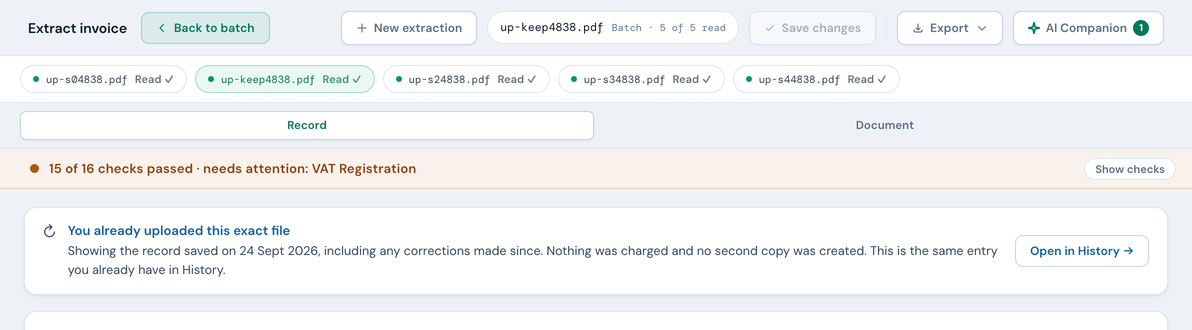
The chip strip while drilled in: every file in the run, its state, and one click to the next. -
Export the lot
Export ▾ at the top of the batch screen downloads one combined CSV for the whole run: Finance-Ready, Sage 50, Xero, QuickBooks® or the FreeAgent bill-ready sheet. Sage, Xero, QuickBooks and FreeAgent exports ask for your nominal, tax, account or category codes first; one choice applies to the whole combined file.
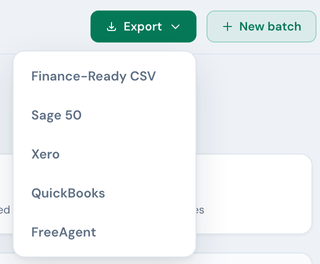
One combined file per format, for the whole run.
Worth knowing
- Duplicates are flagged, not blocked. A file that matches an invoice you've already extracted gets a ⚠ Duplicate pill on its row; you decide what to do with it.
- Credit notes are spotted per file and marked with their own pill; their exports carry the right direction automatically (see how credit notes are handled).
- Credits are charged per document, exactly as single uploads are: 1 credit per document up to 10 pages (see how credits work).
- A busy moment pauses the run, it doesn't fail it. If NoticeDesk is briefly at capacity, the progress band reads NoticeDesk is busy. Continuing in N s and the same file is tried again. After three such waits the run stops, that file is marked with the reason, and the rest are marked Not processed so you can drop them again in a minute. A file is only turned away like this before it is read, so nothing is charged for it and the retry reads it once. If NoticeDesk gets busy after a file has already been read, that row usually goes to Manual review with the read kept, instead of being read again.
- The batch stays together in History: grouped under one header with an invoice count, a roll-up pill only when checks need attention ("3 to check"), and a group export, so a quarter's run is one collapsible block, not fifty loose rows.
- A file that did not join the batch says so. Rarely, a file's record ends up outside this run's batch: a brief problem on our side filed a newly read file on its own, or the file is one you had already processed in an earlier batch, which is not read again and stays where it is. Its row says so under the file name, and the note updates if the record joins later in the run. The export from this screen still includes it; the group export in History does not, so open it in History and export it from there.
Running a batch of a whole VAT quarter? When it finishes, jump straight into the VAT Invoice Check for that period; the run's verdicts feed it automatically.