How credits work
One credit covers one document of up to 10 pages. Here's the full picture: plans, top-up packs, rollover, and what happens at zero.
Last updated 9 October 2026 · 18 min read
The one rule
1 credit covers 1 document of up to 10 pages. Longer documents cost 1 further credit per additional 10 pages (or part). A photo or scan image counts as a single page, whatever the format (JPEG, PNG, WEBP or HEIC).
| Document | Credits |
|---|---|
| 1-page invoice | 1 |
| 10-page invoice | 1 |
| 11-page invoice | 2 |
| 25-page invoice | 3 |
| Phone photo of a receipt (any image format) | 1 |
Everything else (the compliance checks, edits, re-checks, History, exports) is included. Credits are only ever spent when a document is extracted.
What each plan includes
| Plan | Monthly credits | Seats | Also includes | Price |
|---|---|---|---|---|
| Bronze | 50 | 1 | — | £19/mo +VAT |
| Silver | 200 | 3 | Batch & folder upload + VAT Invoice Check | £49/mo +VAT |
| Gold | 600 | 5 | Everything in Silver + approval workflow + 3 email-in addresses | £129/mo +VAT |
| Scale | 2,500 | 10 | Everything in Gold + 10 email-in addresses | £449/mo +VAT |
Prices are shown ex VAT; VAT is added at checkout. Plan credits reset at the start of each billing month; unused plan credits don't carry over. Your usage meter, with the reset date, is on the Plan & billing screen:
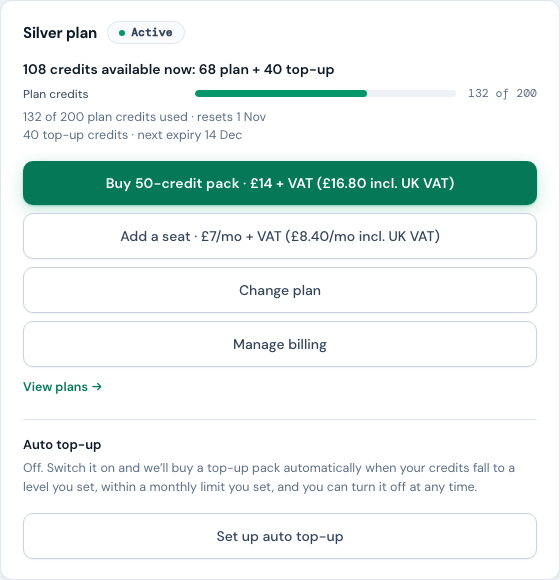
When you have top-up credits, a line above the meter adds the two together: "108 credits available now: 68 plan + 40 top-up". That is everything you can spend today. If you've gone over your plan allowance, the line takes that off the top-up credits first, because a pack settles the overshoot before anything else.
Run low mid-month? Top-up packs
Top-ups are one-time credit packs for busy months, no plan change needed:
| Pack | Price |
|---|---|
| 20 credits | £8 +VAT |
| 50 credits | £14 +VAT |
| 100 credits | £25 +VAT |
| 250 credits | £55 +VAT |
Three things worth knowing about how they're spent:
- Top-up credits last 90 days from purchase; unlike plan credits, they roll over month to month within that window.
- Plan credits are always used first. Top-up credits are only drawn once the month's plan credits are gone (oldest pack first), so a pack you buy near the end of a month isn't wasted.
- A long document can take you a little past your allowance (an 11-page document costs 2 credits even if only 1 was left), and the first top-up credits then cover that overrun before they fund anything new. When that happens, Plan & billing says so under your balance: "20 top-up credits bought this period, 10 of them covered usage that had gone over your plan allowance", so a balance that reads 10 rather than 20 is never a mystery. If the overrun is larger than a whole pack, the buy button is replaced by a sentence naming the shortfall, because that pack would be used up before you could extract again; moving up a plan is the way forward there.
Credits for documents that are still being read count as used from the moment the read starts, and each upload takes its credits one at a time against the live balance. So a batch of uploads sent together can't each be served against the same last credit: once the balance is gone, the rest are refused before they are read, and only the one document that took the last credit can run a little past the allowance (the long-document rule above). A read that fails gives its credits straight back.
Buy a pack from the Plan & billing screen. Top-ups are available on any active plan. The button and the confirmation show the pack price with UK VAT included (for example £14 + VAT (£16.80 incl. UK VAT)), so the figure you agree to is the figure a UK card is charged; Paddle works out the exact tax for your own country and VAT status, and its receipt is the authoritative amount.
If your last payment failed, the buy button is not offered until the card is updated: a subscription with a failed payment can't be charged for anything else. That holds on Plan & billing and in the Out of credits notice on Extract, which says instead: "Your last payment didn't go through. Update your card under Manage billing to buy credits or change plan." The same applies for the half hour before a renewal runs; if you try in that window you'll see "Your subscription can't be changed or charged right now" with the reason, and nothing is charged.
If you click twice, or come back on another tab and try again straight away, you'll see "A top-up is already being processed" or "A top-up was charged a moment ago" rather than a second purchase. That guard covers a few minutes, so it catches a double-click or a quick retry; buying deliberately a little later is treated as a second pack, because sometimes that's exactly what you want. Either way, check your credit balance on Plan & billing before buying again; credits usually appear within a minute of the payment going through.
If a purchase ends without a clear answer (a dropped connection, say, or "We couldn't confirm the payment"), your next purchase first asks Paddle whether that one went through, and nothing more is charged until it can tell: you'll see "We couldn't confirm your last top-up yet" for up to six minutes after the unconfirmed attempt, or "A top-up was charged to your card around the time of the attempt we couldn't confirm" once a charge shows up, so check your credit balance on Plan & billing before buying another pack.
If we couldn't confirm whether a payment went through (the connection dropped, or the payment provider didn't answer in time), the buy buttons on this page stay unavailable until the new credits show in your balance, or for five minutes; after five minutes they come back at the next refresh. That pause belongs to the page you bought from: reloading it, or opening another tab, starts without it, and there our guard against a duplicate charge refuses the same purchase again for a few minutes. If your sign-in simply needed renewing, nothing was sent, and the buttons come straight back.
Very occasionally a billing button answers "NoticeDesk is busy right now. Try again in a few seconds." That is the service briefly at capacity, not a problem with your card: nothing was charged and no purchase was started. Wait a few seconds and press the button again; if it keeps happening, email [email protected].
Change your plan
An owner or admin can move the workspace to any of the four plans from Plan & billing → Change plan. The picker lists the plans with the price shown two ways (ex VAT, and with UK VAT included), marks the one you're on, and, once you choose another, shows exactly what will happen before you confirm. The figure comes from our payment provider's own calculation for your subscription, so it's the real amount, not an estimate. Extra seats you've bought carry across. Two rules, one for each direction:
- Moving up starts today. You pay only the difference for the rest of the current billing period (the picker shows the amount, VAT included, before you confirm), it's charged to the card on file, and the new plan's credits are available straight away. Your renewal date doesn't move; from the next renewal you pay the new plan's full price.
- Moving down takes effect at your next renewal. Nothing is charged today and nothing is refunded. You keep the plan you've paid for, with all of its credits, until the period ends; the picker names the date, and Plan & billing shows "Changes to Bronze on 11 Oct" until then. Choosing your current plan again before that date cancels the scheduled change: the picker offers it with "Keep Silver and cancel the scheduled change to Bronze", nothing is charged, and your credits stay as they are. A change that costs nothing never locks the picker: if you cancel a scheduled move down and then decide on it after all, you can schedule it again straight away. If you'd rather move up while a move down is scheduled, cancel the scheduled change first (that one click), then choose the higher plan; the picker says so if you try it the other way round, because the difference is worked out against the plan you've paid for, not the one waiting to start.
During a free trial you can move to another plan that includes the trial from the same picker. Nothing is charged, the trial keeps its end date, and your first payment, taken when the trial ends, is for the plan you're on by then. Moving up raises your allowance to the new plan's credits from the moment you change, and what you've already used still counts (use 50 of a 50-credit allowance, move to a 200-credit plan, and 150 remain); moving down keeps the higher plan's credits until the trial ends. A plan that doesn't include a trial opens when your trial ends, and the picker names the date. If you've already cancelled, the plan runs to its end date and you can choose a plan after that, or keep it with Keep my plan.
A plan change can't be made once your plan is set to cancel (choose Keep my plan first; until then no Change plan button is offered, the Out of credits notice offers Keep my plan instead, and a plan picker opened from anywhere else takes you to Plan & billing to do it), while a payment is outstanding (update the card under Manage billing first; the Change plan button isn't offered until then), or in the half hour before a renewal runs. If a change has been scheduled on your subscription outside NoticeDesk (a pause, say), plan changes, seats and top-ups wait until it's resolved; the message says so, and an email to [email protected] sorts it out. Grandfathered plans keep their original price and can't be changed from the picker; email [email protected] and we'll arrange it. If two-factor is set up on your account, you'll be asked for a code before the change.
We tell you before you run out, and we show you which option is cheaper
You don't have to watch the meter. Once you're on track to exceed the month's credits, or the balance drops near empty, a notice appears at the top of every screen. If there's enough of the month gone to project a run-rate, it shows one: credits used, days left, and roughly what the full month is heading for. Early in the month, when a projection would be guesswork, it just tells you what's left.
It also does the arithmetic on the two ways forward, and recommends whichever costs less:
- Sometimes the packs win. On Silver, needing 400 documents a month means four 50-credit packs: £105 all in, against £129 for Gold. The notice offers the pack and doesn't mention Gold, because Gold would cost you more.
- Past roughly 450 documents a month, the plan wins. That volume needs six packs (£133) against Gold's £129 for 600 credits, so the notice names Gold and shows both figures.
If you've already bought packs this month it says so. You can dismiss the notice; it won't come back for the same reason in the same billing month.
The notice only names a plan when moving up is the cheaper option; below that it offers you the pack. On a legacy plan it never suggests a change.
Auto top-up (optional, off by default)
If you'd rather never stop mid-run, you can let NoticeDesk buy a top-up pack for you. Under Plan & billing, Set up auto top-up asks for two numbers and nothing else:
- The trigger level: how low your balance gets before we buy more. The default is 10 credits.
- A monthly limit: the most automatic packs we may buy in one calendar month (1st to 1st, which may not line up with your billing month). The default is 3.
When it fires, your saved card is charged for one pack and we email the workspace owner a receipt; Paddle sends its own receipt with the exact amount. Everything else works as usual: automatic credits are ordinary top-up credits, spent after your plan credits and rolling over for 90 days.
Things worth knowing before you switch it on:
- Only an owner or admin can turn it on, and we record who did and when. If two-factor is set up on your account, you'll be asked for a code first.
- Turning it off is immediate, from the same screen, with no confirmation step. You never need to contact us to stop it.
- If a payment fails three times in a row we switch it off and email the owner. The usual cause is a card that has expired: update it under Manage billing and switch auto top-up back on. Only a declined card counts towards those three; a problem on our side or at the payment provider never switches it off, and we're alerted instead.
- It waits while a payment is outstanding. If your subscription payment has failed, auto top-up can't be switched on (and won't buy anything) until the card is updated; it also holds off for the half hour before your renewal runs.
- It needs an active plan. Without a subscription there's no saved card to charge.
If you're setting this up because you keep running out, first ask whether the next plan up costs you less than the packs. Once you have bought two or more packs in a month, the set-up screen says so and links straight to the comparison.
When you run out
New extractions pause, and so do the ✦ re-reads and typed fixes. The out-of-credits notice shows at the top of the Extract screen as soon as you open it, before you pick a file, with the two ways forward: buy a top-up pack, or move up a plan (the Change plan button opens the same picker as Plan & billing). A member sees the same notice, but buying a pack or changing plan is an owner's or admin's job, so it tells them to ask one. If the notice shows over a record with unsaved edits (or a hand-corrected recovery that has not been filed yet), the plan pages open in a new tab so that record stays exactly where it is; come back to this tab when you are done. Everything that doesn't cost credits stays fully available: your History, stored compliance results, direct edits and exports all keep working at zero credits, and on plans that include it, so does the VAT Invoice Check screen.

Count the supplier invoices you process in a typical month; that's roughly the credits you need, since most invoices are under 10 pages. Up to 50 a month: Bronze. Up to 200: Silver. Up to 600: Gold. Beyond that, Scale.
Is there a daily limit as well?
Not on credits. Spend them at whatever pace suits you; clearing a whole quarter's invoices in one afternoon is normal. Each workspace does have a few safety limits, set well above a busy day's genuine work. Their job is to stop a runaway script or a compromised account running up costs:
- Uploads. How many documents a workspace uploads in a day, and in a month. Both are higher than the largest plan's whole monthly allowance.
- Processing. How much processing a workspace uses in a day, counting its uploads, re-reads and typed fixes together.
- Uploads that can't be read. A document that can't be read still costs us to read, so if 100 uploads to a workspace can't be read in one day (fewer, if they are very long documents), new uploads pause until midnight UTC. Each try counts, so sending the same unreadable document again counts again. Uploads in the app and attachments sent to the workspace's email-in address are counted separately: unreadable attachments pause email-in only, and unreadable uploads pause uploads in the app only. An email that arrives during a pause is listed on its receipt as not processed, to send again later.
- Re-reads and typed fixes. Up to 300 re-reads a day, and a daily limit on what re-reads, and separately typed fixes, cost to run. When one is reached NoticeDesk says so, and you can still edit any field by hand (see Fixing extractions).
- VAT registration re-checks. Up to 300 re-checks a day that ask the register itself (a re-check NoticeDesk can answer from a recent lookup of the same number does not count, such as the one that follows a supplier-name edit; nor does one that does not ask a register at all, such as a GB number while the HMRC lookup is not switched on, or a re-check made while a register has asked NoticeDesk to wait, each of which keeps saying why; and a refused re-check leaves the earlier answer in place). When they run out, the VAT Registration row says so, and re-checks resume after midnight UTC; the number's format is still checked on every edit.
If you ever see Upload limit reached, Processing limit reached or Uploads paused for today, nothing you uploaded was lost and the notice says when it lifts: the daily limits reset at midnight UTC, and the monthly upload limit when the next month starts. A batch stops at that point and marks the files it didn't reach Not processed, so you can drop them again later. Your history and exports stay available. If it happens during genuine work, tell us and we'll raise the limit.
NoticeDesk as a whole also has a daily limit, shared by every workspace. If you see Service temporarily limited, either that limit has been reached, and it lifts by midnight UTC, or we could not check it for a moment, so try again shortly. Nothing you uploaded was lost.
Before you choose a plan
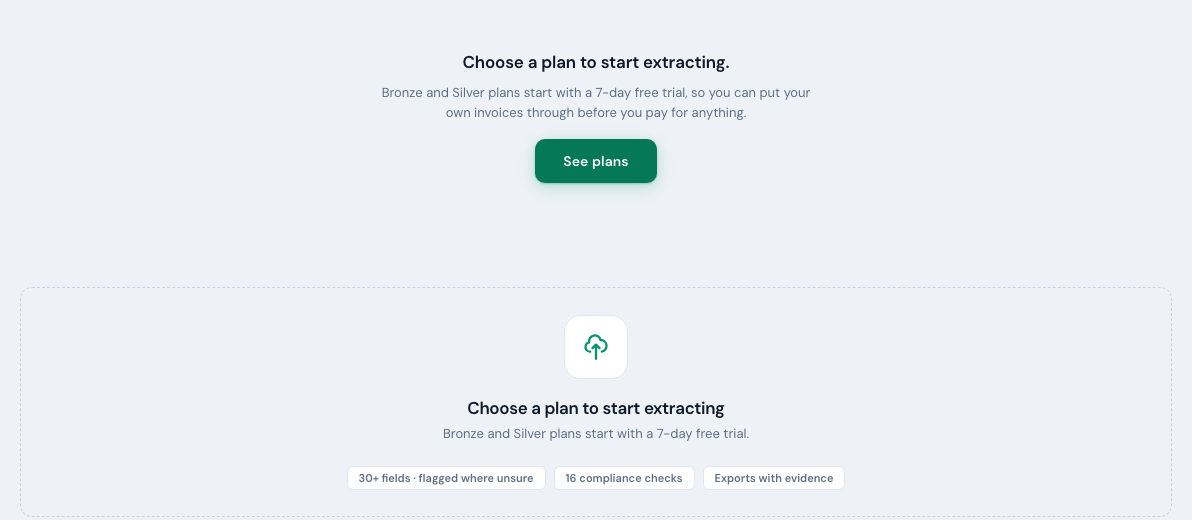
A new workspace starts without a plan. Until one is chosen, the Extract screen shows a Choose a plan to start extracting panel above the upload dropzone, which waits (disabled) until a plan is in place. Some plans start with a free trial (the pricing page says which and for how long), and your first extraction is a couple of minutes away once you've picked a plan. If you're a member rather than an owner or admin, plan choice sits with them: the panel says so, and extraction opens for the whole workspace the moment a plan is chosen.
Which workspace a purchase lands in
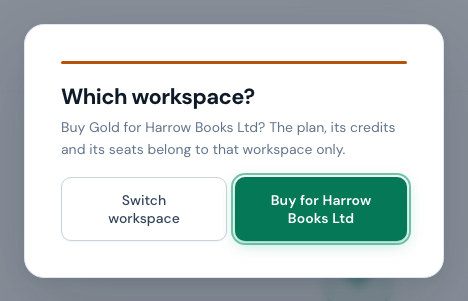
A plan, its credits and its seats belong to one workspace. If you belong to several (a bookkeeper working across clients, say), choosing a plan first asks Buy Gold for <workspace>? naming the workspace that is active; Buy for <workspace> goes on to the checkout, and Switch workspace opens the workspace list so you can pick the right one, after which the same question is asked again for it (on a phone-sized tool screen, where the sidebar is a narrow rail without the workspace list, it asks you to use a larger screen instead). If the active workspace already has a plan, the same question says so and offers Open plan picker for <workspace> instead, because an existing plan is changed in NoticeDesk from Plan & billing → Change plan, not from the pricing page or the billing portal. To back out without buying or switching, press Esc or click outside the box. The secure checkout page repeats the workspace name at the top of your order. The same goes for top-up packs, which are bought from the active workspace's Plan & billing screen. With a single workspace there is nothing to choose, so you are not asked.
After you pay
When the checkout completes you come straight back to NoticeDesk, and a small notice at the bottom of the screen says Payment received. Updating your credits…. The credits themselves arrive on a separate confirmation from the card payment, which usually follows within a few seconds; NoticeDesk checks for it for about fifteen seconds and then says Your credits are ready. For a new plan the Choose a plan to start extracting panel goes and the dropzone wakes up; for a top-up pack the out-of-credits notice goes and the balance under Plan & billing shows the new credits.

If instead it says Payment received; still processing. Refresh in a minute if your credits have not appeared., the confirmation has not reached us yet. Nothing is wrong with the payment and you have not been charged twice: the Choose a plan panel (or the out-of-credits notice) is simply back until the credits land, which they nearly always do within a minute or two. Wait a moment and reload the page. If the plan or the credits have still not appeared after ten minutes, email [email protected] with the workspace name and the time you paid, and we will put it right.