Fixing extractions: edits, AI fixes and undo
Correct a field with a click, or describe the fix in plain English. Either way the checks recompute, the audit trail records it, and undo is one press away.
Last updated 9 October 2026 · 13 min read
Two ways to fix an extraction
Most corrections are a click: select the field, type the right value, done. For anything bigger (or when typing into six fields feels like work), describe the fix in plain English and let NoticeDesk apply it. Both paths end the same way: the compliance checks recompute instantly, and every change lands in the audit trail with an undo.
Typed instructions live in one place: the AI Companion drawer, opened from the top bar. On a desktop screen it opens by itself the first time an extraction appears; close it and NoticeDesk remembers. The drawer is one running feed, newest first: the suggested fixes, then everything that has happened to the record (each field as it was read, the compliance line, your edits with their old and new values, applied re-reads with their diff, removals, exports, saves and undos). The fix box sits at the foot of the drawer, folded away under Ask AI in your own words (advanced). Click that line to open it. Worth knowing before you use it:
- It is the second choice on purpose. The suggested fixes and the ✦ star above it re-read your original document. A typed instruction works from the extracted data alone.
- A reminder sits above the box that AI, not a person, changes the fields you name. Enter or Apply sends your instruction.
- One fix at a time. Start a second while one is still applying and NoticeDesk asks you to wait, so two rewrites can't overwrite each other.
- Your words stay put. If a fix fails or changes nothing, the instruction stays in the box so you can adjust it rather than retype it.
- There is a daily limit. Typed fixes have a daily limit per workspace, set by what they cost to run: when it is reached NoticeDesk says so, typed fixes resume after midnight UTC, and you can still edit any field by hand.
- It's built for a desktop screen. The drawer opens over the right edge of the record at any width and closes with its ✕, the Escape key or a click outside it. On a screen narrower than about 1400px it stays closed until you open it. On a phone, the Extract screen is best left for a larger display.
The ✦ star on a field
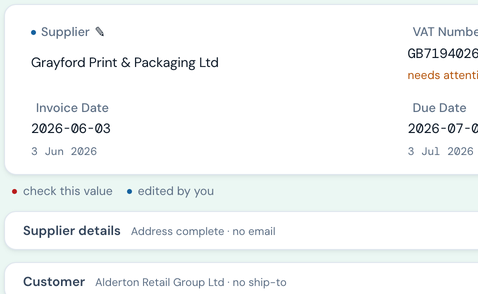
Where NoticeDesk was less than sure about a value, the field carries an amber or red dot and, next to its label, a small ✦ star. One click sends the original document back and re-reads that field and nothing else. Only that field can change. The field flashes green when the new value lands. If the field isn't printed on the document, NoticeDesk says so and changes nothing. It works on line items too. On a record read since worked-out figures arrived, a line re-read finds its line on the document by what it prints, so it lands on the right line even after you remove lines; when it cannot tell which printed line a row is, it changes nothing and says why (see Worked-out figures). On a record read under the older rules a line is re-read by its place in the table, so if you remove a line the document itself prints (one the supplier listed twice, say), re-read the lines below it first: afterwards each would read the printed line above it. A re-read that covers every line, such as Re-read the line totals, waits until you have saved: after you add or remove a line it asks you to save your changes first. A field you have edited yourself never shows a star: your value stands. Nor does a blank optional field (an email, a region, a ship-to line): a star only appears where there is a value to re-read or where the compliance checks need one. Hover over the star (or focus it from the keyboard) and its label says the re-read is done by AI, not a person, and that you should check the result. The one-click re-read buttons (Re-read the VAT number and the rest) say the same.
A star on a money field (a total, VAT, a unit price) re-reads that figure. That is what you asked for. A star on anything else cannot touch money at all: a re-read returns one field, so a re-read of the PO number leaves every figure exactly where it was.
Re-reads have a daily limit per workspace, set by how many you run and by the cost of re-reading long documents. When a limit is reached, the star and the one-click re-read buttons say so, re-reads resume after midnight UTC, and you can still edit any field by hand.
Suggested fixes
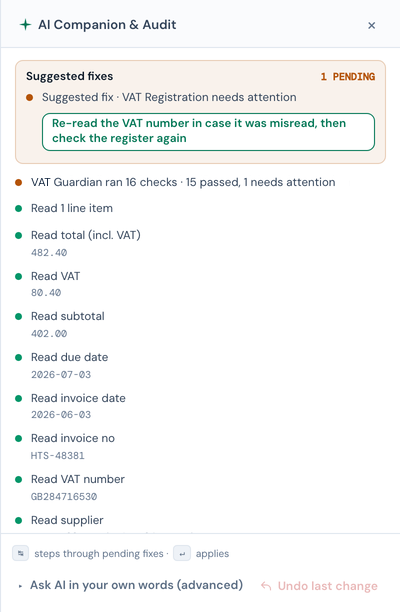
Where a compliance check has failed or raised a warning, the check row offers a one-click re-read button next to Edit field →, labelled with what it reads: Re-read the VAT number, Re-read the invoice date, Re-read the totals and so on. The same suggestions are gathered in the Suggested fixes block at the top of the companion feed, one entry each with the same chip; the top-bar button and the feed's N PENDING pill count them, and while any are pending the Export menu opens with a caveat naming the count (export is never blocked, only made deliberate). Every one of them sends the original document back and re-reads the printed value; nothing is applied until you click, and nothing is ever typed into the record on your behalf. A re-read uses no credits (the document was paid for when it was extracted), though it does pause while a workspace is out of credits. Re-reads count toward the daily limits described under the star above: a fair-use limit of 300 re-reads per workspace per day, and a limit on the cost of re-reading, which a day of re-reads on long documents can reach first. When a limit is reached, the stars and re-read buttons say so when you hover or focus them (for the first, "This workspace has used its 300 re-reads for today"), re-reads resume after midnight UTC, and every field stays editable by hand in the meantime. While it runs, the band across the top of the record says Re-reading…; when it lands it says what happened: Confirmed, Not on document, or, for the arithmetic checks, whether the figures now reconcile. A successful re-read is confirmed by a brief message at the foot of the screen; there is nothing to dismiss. When the value is not printed on the document, a dialog says so and offers Clear the field (the value on screen may have been a guess) or Keep it. Clearing counts as your own edit: it is marked as checked by you, listed in the audit trail, and one Undo away. On a record read under the current rules, the checks then treat that field as not printed, because a re-read found it is not on the document (see Worked-out figures). If a re-read is refused before it runs, for example because your changes need saving first, the band across the record says what to do and nothing changes. The invoice number and the supplier name are the exceptions: a saved record keeps both, so for those the message says the value stays, rather than offering to clear it, and asks you to type the right one if the document shows a different one. A record read under the current rules can lose its invoice number in one case: when a re-read finds the document prints none (a till receipt often does not), Clear the field is offered and the record saves without a number. The supplier name is always kept, because every VAT invoice shows who supplied it.
Totals Math re-reads the subtotal, VAT and total exactly as printed, in one go; Line Items Sum re-reads every line total and the subtotal. The check then runs again on what the document actually says. If it still fails, NoticeDesk tells you the figures don't add up on the document itself. That is a question for the supplier, and NoticeDesk will never change a number to make the sum work. VAT Registration is a live lookup against the HMRC or VIES register: when it says "not registered" the usual cause is a misread digit, so its button re-reads the number and runs the lookup again (even if the number comes back the same); when it says the name doesn't match, the button re-reads the supplier name instead.
Direct edits
Click any field (in the header grid or the line-item table) and type. Three things happen as you do:
- The field picks up a ✎ edited marker and a blue dot, which mean your value, kept exactly as typed, and marked as edited by you in the record. The feed logs the edit with its old and new values.
- The compliance checks re-run immediately: you can watch a failed Totals Math check turn green as you correct the number it depends on. The band across the top of the fields says how many checks still need review after your edit, and the fields flash green, or amber if the edit introduced a new problem.
- Edit the VAT number and NoticeDesk automatically re-checks it against the register in the background (VIES for EU numbers, HMRC for GB); the registration row shows Checking with HMRC/VIES… and updates with the answer.
Removing a line
Sometimes a line doesn't belong on the record at all: the same item read twice, or a row picked up from a footer or a delivery note. Each row of the line-item table ends with a small ✕ button. Click it (or reach it with Tab and press Enter), confirm the line it names, and the row goes; the lines below renumber and your keyboard place stays in the table. It counts as your own edit, exactly like typing in a cell: the compliance checks re-run, the change is listed in the audit trail (a crimson entry in the feed), and one Undo puts the line back. Typing an instruction can't do this (the assistant edits values, it can't add or remove lines), so the ✕ is the way.
Removing a line usually makes Line Items Sum start warning, and sometimes Totals Math with it. That is the check doing its job rather than the removal going wrong: the document's own subtotal and total haven't changed, so the lines you're left with no longer add up to them. If the line was genuinely double-counted on the invoice, correct the subtotal and total to what the supplier should have charged and the checks settle. If the invoice really does say what it says, leave the figures alone. The mismatch is the supplier's, and the warning is worth keeping in front of you.
The fix box
-
Describe the fix
Open the AI Companion drawer, click Ask AI in your own words (advanced) at its foot to unfold the fix box, and type an instruction, for example "Change the PO number to 200030", "the supplier is Hartwell Trade Supplies Ltd, not Hartwell Trade", or "set every line's VAT rate to 20%".
Above the box sits a standing reminder that AI, not a person, changes only the fields you name in your instruction, and that you should check the result before you save or export it. It is on screen whenever the box is, because this is the step where a person has the final say.
-
Apply it
Press Apply (or Enter; Shift+Enter starts a new line). NoticeDesk changes the fields you named and the screen re-renders: fields, line items and compliance checks together. The feed's newest entry shows what moved, before and after, under an APPLIED pill: header fields and individual line-item cells alike.
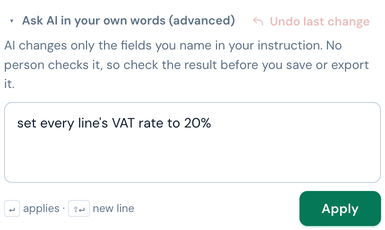
Unfolded, the fix box shows the standing AI reminder above the instruction you type. -
Check the audit trail
Every applied fix, edit, removal, export and save is recorded in the AI Companion feed (the same top-bar button), newest first, alongside the reads that produced the record. The top-bar button carries two small counts: items still waiting for you (suggested fixes and an unresolved duplicate), and changes you have applied.
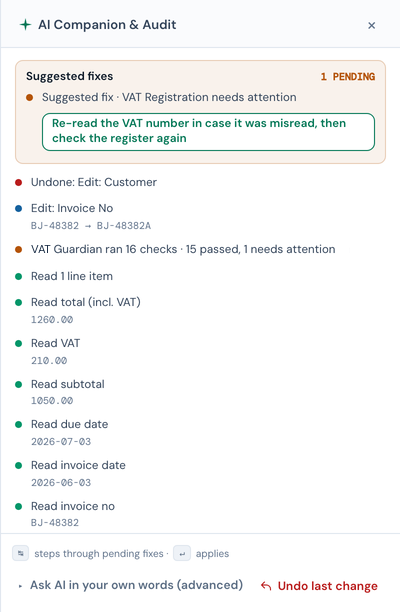
Each change, newest first, with Undo one click away. -
Undo if it went wrong
Undo steps back one change at a time, including AI fixes. The feed logs the undo, and the entry for an undone AI change flips from APPLIED to UNDONE, so it never describes a change that is no longer on the record. After an undo, the VAT registration check re-verifies automatically in case the undo restored a different VAT number. While a fix or a re-read is still running, Undo is greyed out and its hover text says to wait; it comes back the moment the answer lands, so the answer can never arrive on top of a record you have just stepped back.
What a typed fix deliberately won't do
- The fix box can't re-read the document. A typed instruction rewrites the extracted data; it doesn't go back to the PDF. To re-read a field from the document itself, use the ✦ star on the field or a suggested-fix button. Those send the original file back for a single-field re-read, and only while the document is still open in this session (after a reload, or from History, they don't appear).
- It can't add or remove a line. The assistant edits values; it cannot add or remove lines, so use Remove line on the row. Each line-item row carries a small ✕ button at its right-hand end: click it, confirm, and the line goes. That is a deliberate limit rather than an oversight: a fix only ever changes the fields your instruction names, which is also what stops it emptying the record. Removing a line counts as your own edit: the compliance checks recompute, and it is one Undo away.
- It can't change the document type. An invoice can't silently become a credit note (or vice versa) through an AI fix: that would flip the money direction of your exports, so the type is pinned. There is no box to edit it either; if the type itself was read wrongly, upload the document again or email [email protected].
- It won't make your totals add up. A failing arithmetic check gets a one-click re-read, never a recalculation: the figures come back as printed, and if they still disagree NoticeDesk says so rather than altering one. See "The arithmetic checks re-read, they never reconcile" above.
- It won't move money you didn't ask about. If your instruction isn't about money and a figure has moved anyway (a total, the VAT, a unit price, a quantity, a VAT rate), the whole change is refused and nothing is applied. NoticeDesk names the figures it stopped. Ask about that figure directly ("the total should be 858.48"), take it from the document with a ✦ re-read, or type it in yourself. When your instruction is about money, money can move: "set every line to 20% VAT" changes the VAT and the total, as it should.
A typed fix never sees your PDF, so it can't tell whether a figure is what the invoice says; only a ✦ re-read can. If a fix changed the subtotal, VAT and total together they would still add up, so the compliance checks would not notice. Refusing any money change you didn't ask for is what catches that.
A typed AI fix changes only the fields your instruction names. Only the fields you named come back from the fix, and NoticeDesk carries every other value across untouched, so a fix cannot blank or rewrite a field you did not ask about, and it cannot empty the record. Any field it does change loses its "checked by you" mark and its dot goes neutral, because the value came from your instruction rather than from the document. A field you type into while a fix is still running keeps your own mark: only the fields the fix actually changed are relabelled, the feed's APPLIED entry lists only those fields, and undoing that fix steps back the fix alone, leaving your own edit in place. Keep the typed fix for broad instructions ("set every line to 20% VAT"); for a single field, the ✦ star re-reads it from the document itself, which a typed fix cannot do. Either way, Undo steps back the last change.
Save when you're done: Save changes stores the corrected version (and its compliance results) to History, and it's the corrected version your exports use.