Team, roles & workspaces
Invite your team, give everyone the right level of access, and understand how seats (and extra seats) work.
Last updated 9 October 2026 · 8 min read
Workspaces, briefly
Your business's invoices, history and billing live in a workspace. Most people belong to one. Your current workspace shows on the chip at the bottom of the sidebar (on a marketing or Support page, open the sidebar first with the › chevron beside the wordmark); if you're invited into others (say, a bookkeeper working across several clients), opening that chip lists them all so you can switch, and everything you see and upload belongs to whichever workspace is active. Data never mixes between them.
The four roles
| Role | Can do |
|---|---|
| Owner | Everything, including billing, plan changes, and granting any role |
| Admin | Manage the team (invite or remove members and viewers) plus everything a member can do |
| Member | The day-to-day work: upload, edit, save, export |
| Viewer | Read-only: view extractions, compliance results and History, and download exports |
Two guardrails to know: an admin can't grant a role senior to their own, and the last owner of a workspace can't be demoted or removed, so a workspace can never end up ownerless.
Invite someone
-
Open Team
Pick Team in the sidebar (visible to owners and admins). You'll see current members, pending invites, and your seat count.
-
Enter their email and role
Choose the role that matches what they'll do; you can change it later. Press Invite.
-
They sign in with an email code
New to NoticeDesk, they get an invitation email and sign in with an 8-digit email code: no password to set up. Already a NoticeDesk user? They're added straight away and the workspace appears in their switcher.
Inviting an address that already has a pending invite sends nothing new. You'll see "An invite for <email> is already pending. Revoke it and invite again to send a fresh code." The pending invite itself is what lets them sign in, so if their first email went astray, press Revoke beside it and invite them again: that sends a fresh invitation. That holds however the invite was sent, including by another admin or from another tab moments ago. Inviting a pending address with a different role is the exception: the pending invite is updated in place, the role beside it changes, and you'll see "<email>'s pending invite now carries the admin role. No new email was sent." There is nothing to revoke; the code they already have signs them in with the new role. Inviting again someone who already has a NoticeDesk account adds them straight away, and uses up their pending invite, so they hold one seat, not two.
If more than one workspace invites you before you first sign in, that first sign-in joins you to every one of them. You land in the workspace that invited you first, and the chip at the bottom of the sidebar switches to the others. A workspace that is at its seat limit keeps its invite waiting, and your next sign-in after a seat frees joins you to it. That holds even once you belong to another workspace; you still land where you did before. If you already have a NoticeDesk account, an owner or admin can also invite you again once a seat is free, which adds you straight away.
Seats and the seat limit
Each plan includes a number of seats: Bronze 1, Silver 3, Gold 5, Scale 10. Everyone in the workspace occupies a seat, and a pending invite holds a seat until it's accepted, revoked or expires.
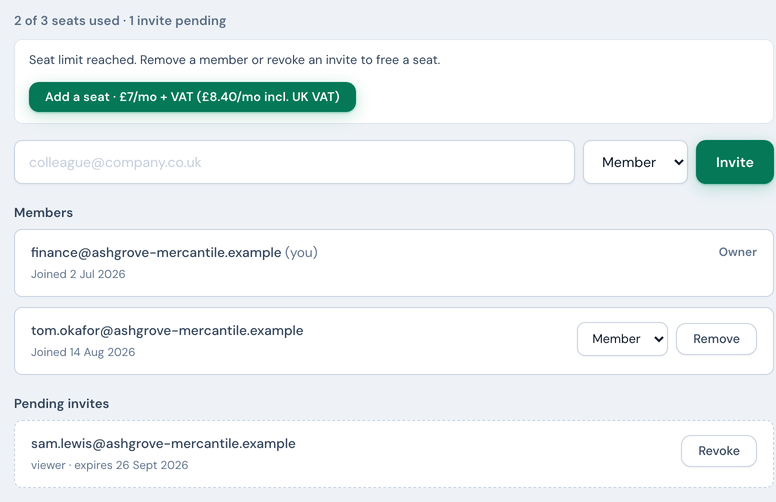
When you're at the limit, the seats strip offers the way forward:
- Add a seat · £7/mo + VAT (£8.40/mo incl. UK VAT): one click adds a seat to your existing subscription. The button and the confirmation both show the price with UK VAT included, so the figure you agree to is the figure a UK card is charged. Our payment provider works out the exact tax for your own country and VAT status, and its receipt is the authoritative amount. Extra seats survive plan changes. During a free trial nothing is charged for a seat when you add it: it joins your first payment when the trial ends.
- See plans: shown instead when seats can't be added to your plan. Moving up a plan is often better value if you need several more seats.
If you click Add a seat · £7/mo twice, or try again from another tab, you'll see "A seat purchase is already being processed" or "You just added a seat" rather than a second charge. Buying another seat on purpose still works; the guard is about the same purchase happening twice, not about how many seats you may add. Check your seats count on the Team screen; it catches up within a minute of the payment going through. If we couldn't confirm whether the purchase went through, the button on this page stays unavailable until the new seat shows, or for five minutes; after five minutes it comes back at the next refresh. Reloading the page, or another tab, starts without that pause, and there our guard against a duplicate charge refuses the same seat purchase again.
Very occasionally the button answers "NoticeDesk is busy right now. Try again in a few seconds." That is the service briefly at capacity, not a problem with your card: no seat was added and nothing was charged. Wait a few seconds and press it again; if it keeps happening, email [email protected].
If your last payment failed, the Add a seat button is not offered until the card is updated: a subscription with a failed payment can't be charged for anything else. The seats notice says instead: "Your last payment didn't go through. Update your card under Manage billing to add a seat." The same applies for the half hour before a renewal runs. If you try in that window you'll see "Your subscription can't be changed or charged right now" with the reason, and nothing is charged.
Once your plan is set to cancel, Add a seat isn't offered either: a seat bought then would end with the plan. Choose Keep my plan under Plan & billing first.
Removing someone frees their seat immediately. Their contributions (extractions, edits) stay in the workspace's history. Two things move with them: any email-in address they created is handed to you (the owner or admin who removed them, or the oldest remaining owner if they left by themselves), so mail to it keeps arriving and its receipts now come to you; and any invoice still awaiting their approval is withdrawn, so the person who asked can pick a new approver. The same happens when a member is changed to a viewer.
Removing access
An owner or admin can remove anyone from the Team screen, which frees their seat immediately. If you've been added to a workspace you no longer work with and want to be taken off it, ask one of its owners or admins to remove you, or email [email protected]. A workspace's last owner can't be removed, so it can never be left ownerless.
What the removed person sees: if this was their only workspace, their next sign-in stops at a message saying they're no longer a member of a workspace, and points them to the workspace owner or to [email protected]. Removing someone by mistake is easy to undo: invite the same address again and, because the account already exists, they are added straight back with no new code to enter.
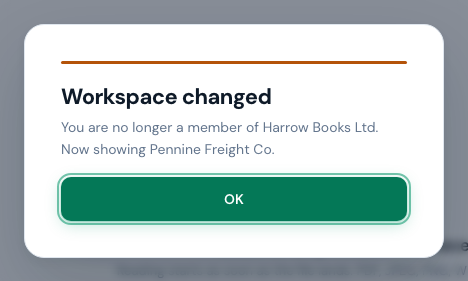
If you belong to more than one workspace and are removed from the one you have open, NoticeDesk moves your tab to another of your workspaces the next time the tab checks in (usually within a minute or two, though never while a document is open on the Extract screen, a batch's results are showing, or your cursor is in a text field) or the moment you next save or upload, and tells you: "You are no longer a member of <workspace>. Now showing <workspace>." Anything from the old workspace that was on screen is cleared at the same time, so a document can never sit under the wrong workspace's name. Unsaved edits to one of its invoices are lost with it; they belonged to a workspace you can no longer write to. A file you had only just picked is set aside too, before it is read: choose it again once the tab shows the workspace you meant it for. A batch that was still running stops at the file it was on and says "Batch stopped"; the files it had not reached are not read under the new workspace, so drop them again there if you want them. In the rare case that a save or upload is refused because this tab was still pointed at the old workspace, you'll see "This tab was still sending to a workspace you no longer belong to. Now showing <workspace>. Try again." and the next attempt goes to the workspace now showing.