Two-factor authentication
A six-digit authenticator code on top of your email sign-in: one minute to set up, and turning it off always demands a fresh code.
Last updated 9 October 2026 · 2 min read
What it adds
Two-factor authentication links an authenticator app to your account. Your email code proves you can read your inbox; the authenticator proves you're holding your device. It's per person and optional: you secure your own account without changing anything for your teammates.
Any standard authenticator app works: Google Authenticator, Microsoft Authenticator, 1Password, Authy, and the like.
After you sign in, NoticeDesk offers enrolled users an authenticator check. You can dismiss it and carry on. One line holds whatever you do: two-factor cannot be switched off without a current code, so nobody who picks up a signed-in browser can quietly remove it.
Turn it on
-
Open Security
It's in the sidebar for every signed-in user: this is your own account's screen, not a team-admin surface.
-
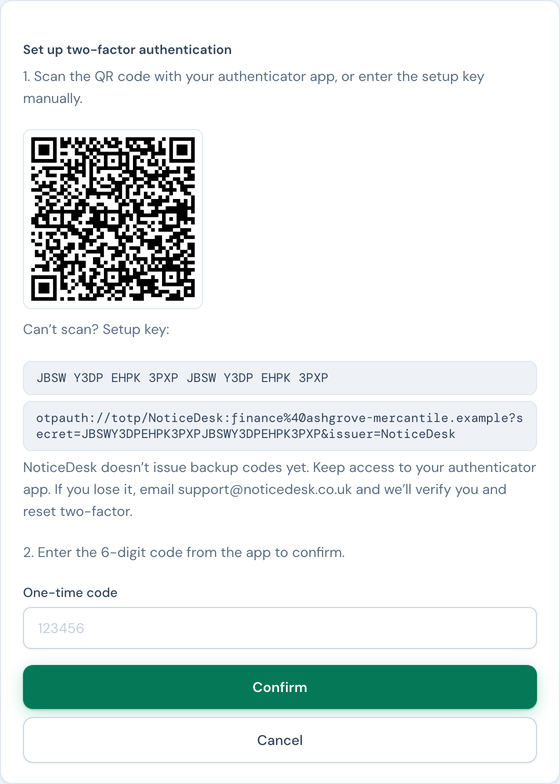
Press Turn on two-factor and scan the QR code
Point your authenticator app at the code. Can't scan (say, you're on the same device)? Use the Setup key shown alongside and add it to your app by hand.
-
Confirm with a code
Type the six-digit One-time code your app now shows and press Confirm. That first code proves the app and NoticeDesk agree; from here, two-factor is on.
Day to day
You'll barely notice it. After signing in with your email code, NoticeDesk offers a quick authenticator check. Enter a code and the session is marked as fully verified; press Not now and you carry on.
If you lose your device
There are no backup codes yet: our authenticator setup doesn't issue them, so recovery runs through us rather than a code you'd have to store somewhere. If you lose access to your authenticator, email [email protected] from your account's email address and we'll verify you and reset enrolment.
Turn it off
On the same Security screen, press Turn off two-factor, confirm with Turn off, then enter a current code from your app. Your account returns to email-code sign-in only.
If the code dialog says it couldn't renew your session, nothing has been turned off and you are still signed in: your sign-in is renewed quietly in the background and that renewal failed for a moment (a wobbly connection, or the sign-in service was briefly busy). Wait a moment and press Verify again with a fresh code. Only a message that your session has expired means you need to sign in again.
If you handle other people's financial documents (bookkeepers and practices especially), treat two-factor as part of the job, the same way you would on your bank login. It's a one-minute setup.