History, search & the audit trail
Every saved extraction, searchable and filterable, with a read-only detail view, re-downloadable exports, per-check evidence and a full event timeline.
Last updated 9 October 2026 · 7 min read
What History holds
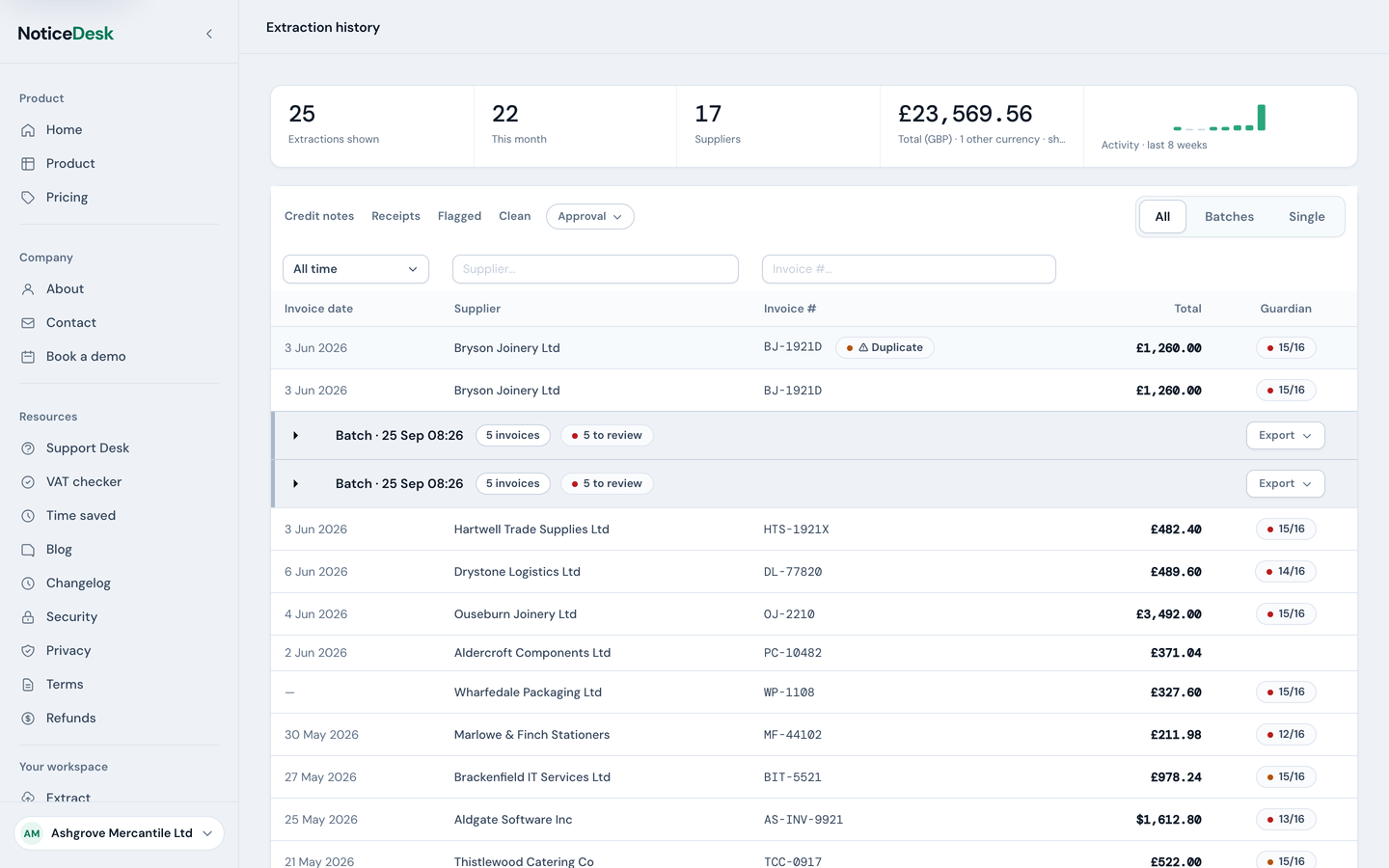
Every extraction you save lands in History: the data, your edits, and the compliance verdict, all kept together. The date column is the invoice's own date (hover a row for when it was uploaded). A row only carries a pill when something needs your attention: a compliance score with failures or warnings, a duplicate flag, a credit-note marker, or an approval state. A fully clean invoice shows no pill at all. A skipped check never adds a pill: one that could not run (the register did not answer, say) is shown as not run on the record, not flagged, and so are a receipt's “not required” rows and a line that shows an amount only (see compliance results). Only a failed or warned check colours the row.
Finding an invoice
- Search by supplier or invoice number; matches as you type.
- Date presets: All time, This month, This quarter, Last quarter, or a custom range. The filter runs on the invoice date, so it matches how you think about VAT periods.
- Quick filters: the Credit notes, Receipts, Flagged and Clean tabs. Combine them with search and dates. The quick filters apply to the rows loaded so far: if more pages are waiting and none of the loaded rows match, the list says so, and Load more fetches the rest.
- Approval state: the Approval ▾ menu narrows to Awaiting approval, Approved or Rejected. See the approval workflow guide.
- All / Batches / Single: the view segments count as filters too: Batches shows only batch runs, Single only one-off extractions.
- Load more pages older results in as you need them.
Filters deliberately persist while you move around the app: come back to History and your working view is where you left it. Whenever at least one filter is active, a Clear filters (N) button appears with the count of what's narrowing the list; one press returns you to everything. And every ▾ menu here works from the keyboard: arrow keys move, Enter chooses, Esc closes.
Batches stay together
A multi-file run appears as one collapsible group with a neutral invoice count, plus a roll-up pill only when something needs attention: "3 to review" or "2 to check"; a fully clean batch shows just the count. The group header has its own Export ▾ that regenerates one combined CSV for every invoice in the batch.
Opening an invoice
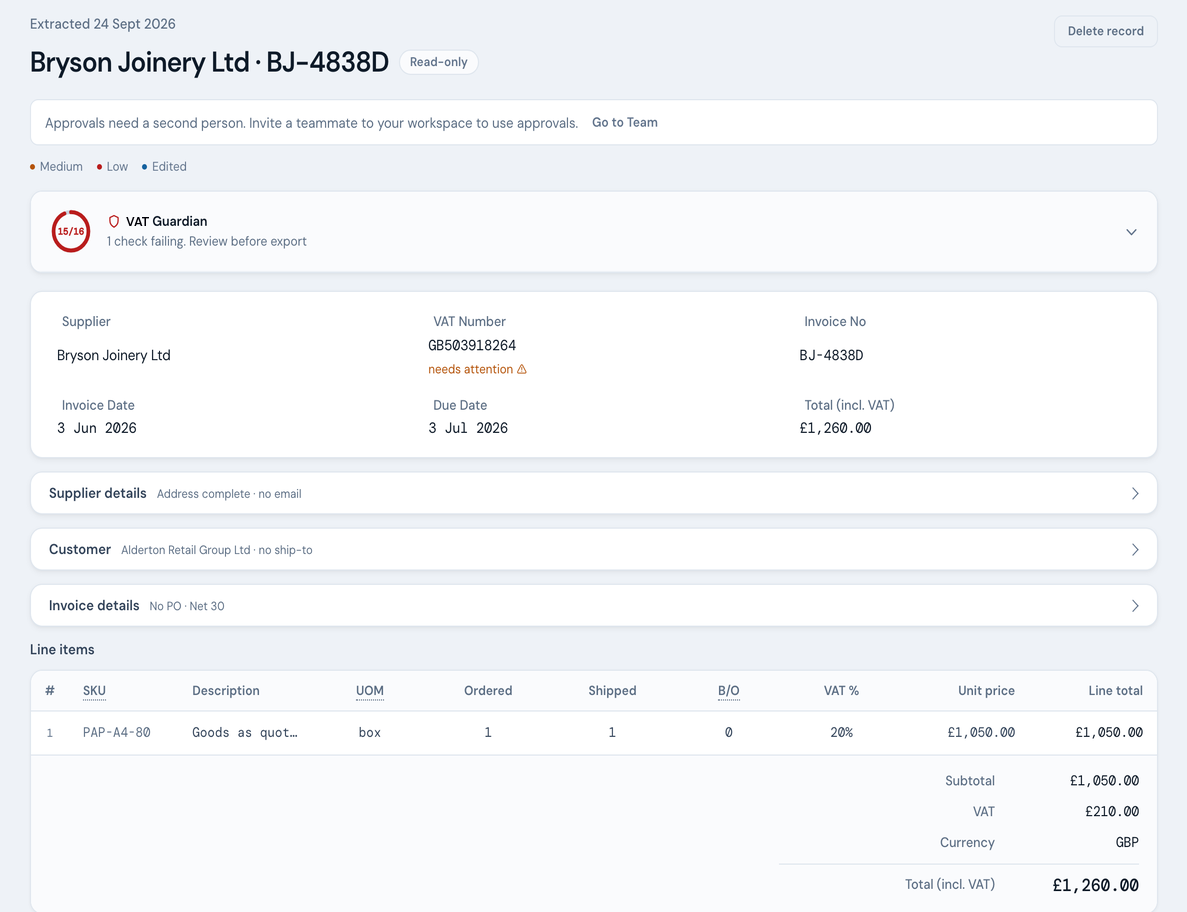
Click a row and the stored extraction opens read-only: the same field layout and compliance banner, but nothing here can accidentally change your data.
From the detail view you can:
- Re-download any export: Finance-Ready, Sage 50, Xero, QuickBooks® or the FreeAgent bill-ready sheet, regenerated from the stored data on the spot.
- Download the Evidence record: a CSV of every compliance check on this document: result, message, the HMRC citation where the check has one, and the registration lookup's evidence (which register answered, and when).
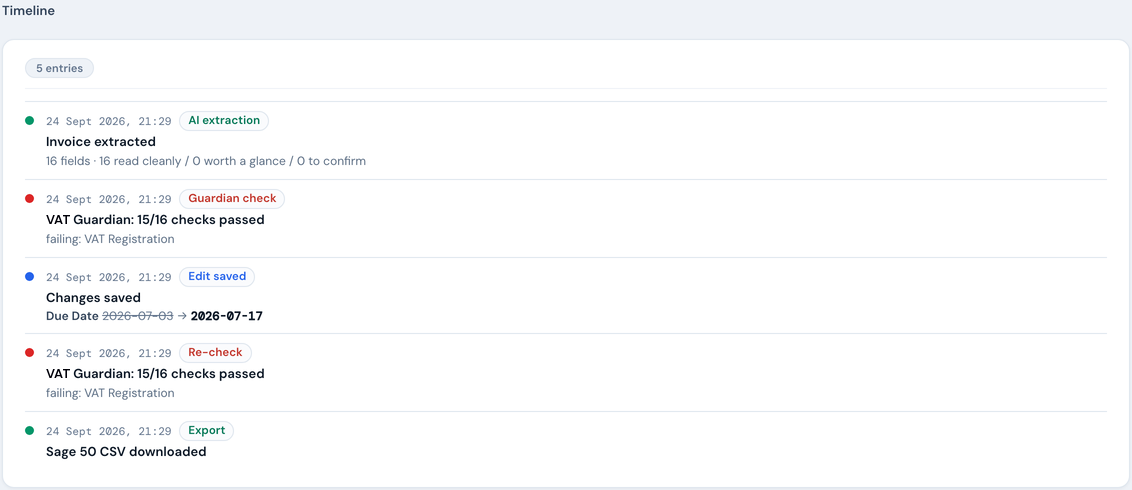
- Read the timeline: the document's full event trail, oldest first: extracted, checks run, edited (with what changed in the verdict), a field re-read from the document (proposed, and applied only if saved), the register re-checked (a ↻ Retry or Companion re-check that updated the VAT registration result, with what it became), the approval steps (requested, approved, rejected with the reason, cleared by an edit, cancelled), a possible-duplicate flag cleared (and why), or raised by a save that makes the record match another one (for the first time, or a different one), or moved onto another copy of the same document because the record it pointed at was deleted or edited so it no longer matches, a Not a duplicate decision carried over from a record this one took the place of, re-uploaded (the same file came in again; the stored record was returned, nothing read and nothing charged), exported (which format, from where), deleted. Your audit answer to "who touched this and when". The extraction entry (and the Evidence record's chain of custody) also says what NoticeDesk changed on the way in: a credit note's figures the document printed as negative are recorded as positive and the entry names which ones (“credit-note amounts recorded as positive”, followed by the fields: the timeline names the fields as the screen labels them and the Evidence record by its own column names, so the VAT figure is “VAT” in one and “Sales Tax” in the other; a re-read of a credit note's figures names them the same way on its own entry), a date printed as 15/03/2026 is recorded as 2026-03-15 (“dates recorded as YYYY-MM-DD”), and fields marked confirm ⚠ because the read's own markers did not line up, or were missing, are listed as “marked to confirm”. The same honesty applies when you save: if NoticeDesk tidies a value you did not touch (a stray space or invisible character at the edge of an address, an older record's date recorded as 2026-03-15), the timeline lists it under “tidied by NoticeDesk, not an edit” and the Evidence record labels the row “Tidied by NoticeDesk”, so only what you changed is recorded as your edit.
If you keep digital records under Making Tax Digital (for VAT, or for Income Tax since April 2026), this is the evidence behind each record: the stored date, net, VAT and total, the supplier's VAT number, the check results, and the chain of custody from extraction to export. The record itself lives in your accounting software, which is where your VAT return or quarterly update comes from. NoticeDesk doesn't file, submit or send anything to HMRC; it keeps the evidence and hands the checked figures to your ledger through the exports.
Exporting a whole period
The whole-period export is the VAT Invoice Check audit pack: one CSV row per invoice for any date range, with its check result and issues (Silver plans and above). For the accounting files, a batch group's Export ▾ (shown on the group header when no filter is active) downloads one combined file for that batch in any of the five export formats. Each single invoice exports from its own detail view.
Can I get the original PDF back?
No. The file is deleted from our servers once it has been processed; what History keeps is the extracted data, your edits and the check results. Keep your own copy of the invoice.
Can I delete a record?
Only a workspace owner can: History is your evidence trail, so removal is a deliberate act, not a row button. Open the record and use Delete record in its detail view; the usual reason is a true duplicate that would otherwise sit in your VAT-period totals. The deletion itself is recorded on the record's timeline, so the trail survives. Members and admins don't see the option; ask an owner.
What deletion does to the data: the record leaves your views and your VAT-period rollups straight away, and within 90 days the contents we read from the document (the supplier, the amounts, the VAT number, the line items) and the file's name are removed from our database. A record that the extraction existed stays, without those contents, so the timeline and the audit trail still make sense. The Privacy Notice sets this out in full.
History is never locked behind your plan. Out of credits, trial lapsed, subscription ended: you can always sign in, read everything here, and re-download your exports.