Your first extraction
From a PDF in your downloads folder to checked, structured invoice data, in about a minute.
Last updated 9 October 2026 · 8 min read
Before you start
You sign in with a one-time email code: there's no password to set. Enter your email, type in the 8-digit code it sends you, and you're in. You land on your dashboard, which stays mostly empty until your first documents are saved.
NoticeDesk reads PDFs and photos or scans of invoices (JPEG, PNG, WEBP and HEIC). A document can be up to 100 pages. You don't need to tidy anything up first: skewed photos and multi-page scans are fine.
Extract your first invoice
-
Open Extract
Pick Extract in the sidebar, or Upload your first invoice on the dashboard. The whole screen is the dropzone: there is nothing else to set up and no button to press afterwards.
-
Drop in an invoice
Drag a file onto the dropzone, or click it to browse. Reading starts the moment a document is dropped. If the file can't be read (corrupt, password-protected, or not really a PDF), NoticeDesk tells you at this point, before anything is charged or processed (the full list of formats and limits is in supported files). Or choose a folder, beneath the dropzone, starts a batch.
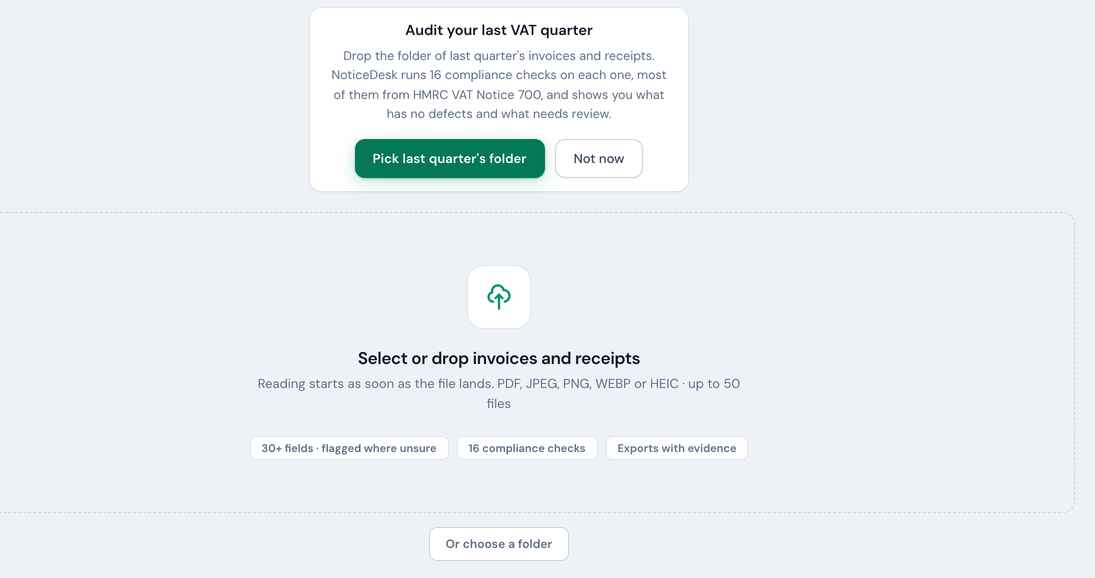
The dropzone is the whole screen. It takes single files, multi-selects, or a whole folder. TipPassword-protected PDF? Remove the password first (open it and re-save/print to PDF), then upload again.
-
Watch it read the document
Two tabs sit above the stage: Record and Document. The record shows first. While the document is read, the band at the top says Reading document… with a thin sweeping line. When the read lands, the band changes to Running VAT Guardian checks… and counts the fields and checks as they appear, one after another in reading order (supplier, VAT number, invoice number, dates, then the amounts, the line items and the checks); a field that needs a look gets a short word beside it. Click anywhere in the record to show everything at once. Switch to Document at any time to see the original: a PDF is drawn page by page as a clean sheet (no viewer toolbar), a photo is shown as it was uploaded. Every field on the invoice (supplier, dates, VAT number, line items, totals) is read into a structured form, and the compliance checks run automatically as part of the same pass. One document is read at a time: choosing or dropping another while the band still says Reading document… is refused with a short notice, nothing on screen changes, and you can pick it again the moment the read lands. The same goes for New extraction in the top bar: pressed during a read it shows the same notice and leaves the read to finish.
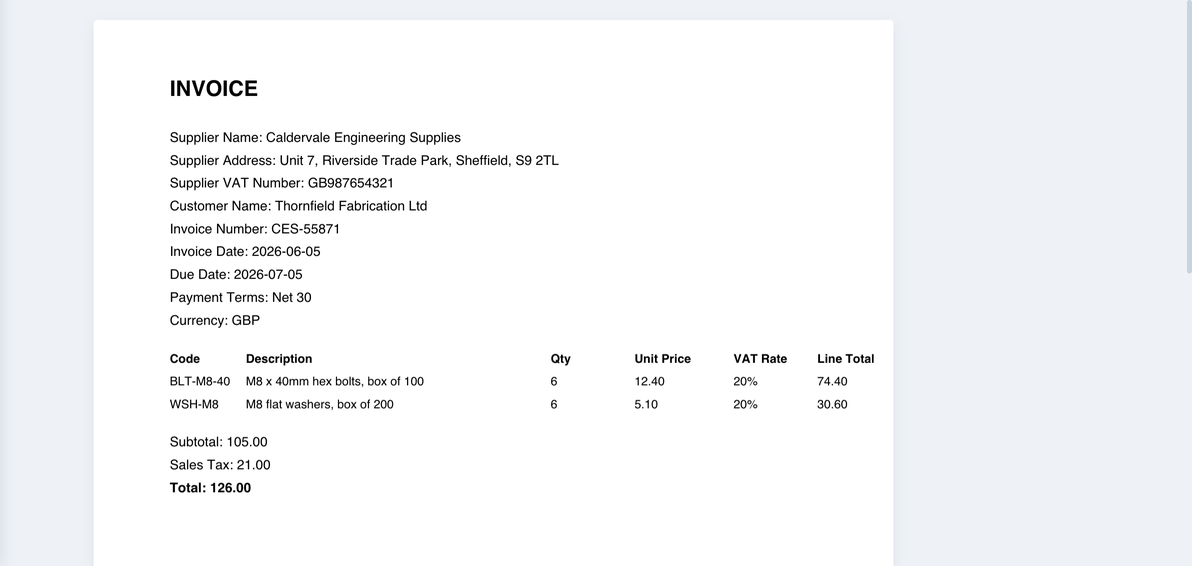
The Document tab draws the pages of the PDF itself; long documents show the first 20 pages and say so. 
Extraction and the compliance checks run as one pass; the band says what is happening and counts what has appeared so far. -
Review the markers
Dates are kept as 2026-06-05 whatever form the document printed them in, so an edit and the checks read the same value; the everyday form (5 Jun 2026) sits under the box as a read-out. A confident field carries no marker at all. A field the read was less sure of carries an amber or red dot, and a field you have edited a blue one; a small key under the header card explains the two whenever one of them is on the header card. A field that needs you also carries a short word under its value: confirm ⚠ or needs attention ⚠. A field with no dot and no word has passed; there is nothing to read. A confirm ⚠ word asks you to check that value against the document. That field also carries a small ✦ star next to its label. Click it and that one field is read again from your document; nothing else changes.
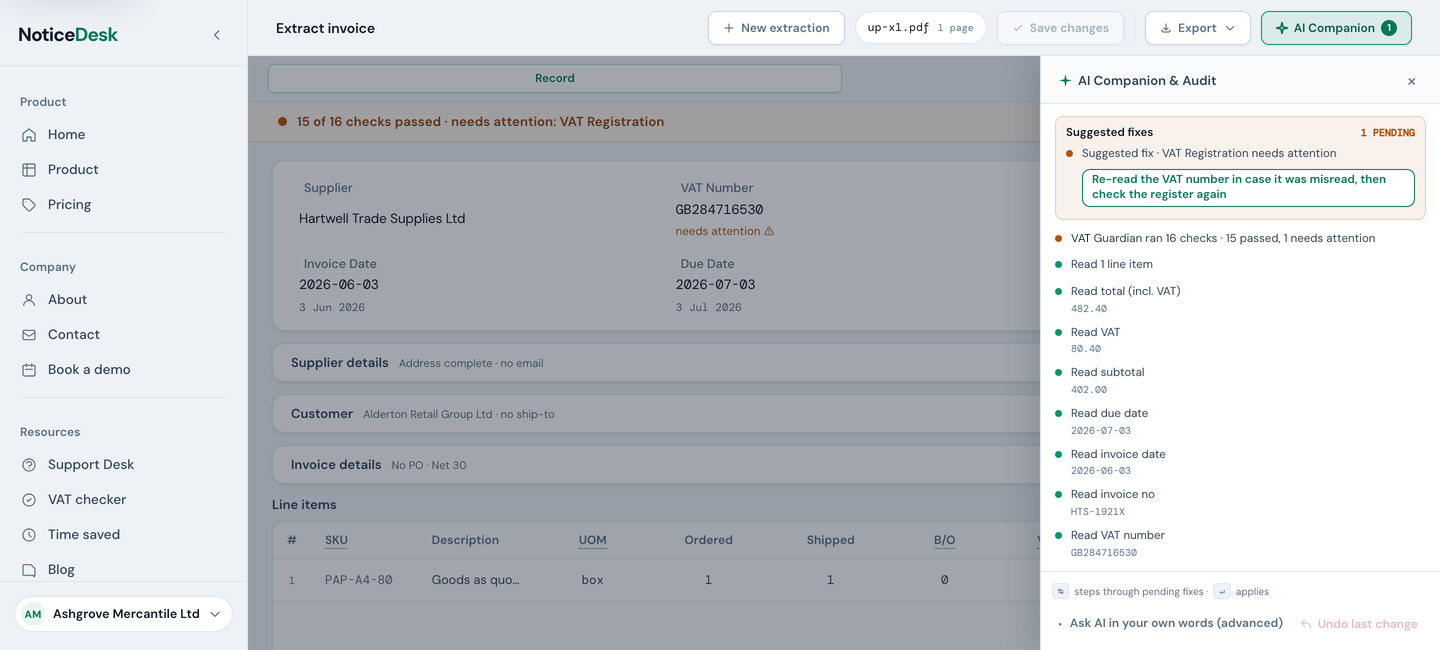
The record reads like a bill: the six key fields, Total included, in a header card; the rest in cards whose one-line summary says whether the address is complete or a PO exists; Subtotal, VAT and Currency under the lines. A cell only carries a word (confirm ⚠, needs attention ⚠) when something needs you; the dot colour and the compliance card at the top carry the rest. A details card opens by itself when a field inside needs attention. The AI Companion feed opens over the right edge on a wide screen. Marker Means What to do No marker Read cleanly Spot-check the totals; usually fine as-is Amber Worth a glance Glance at the original and confirm Red Confirm this value Check against the document and correct Blue dot ✎ Edited by you Your value; kept as typed (a money box as a figure, a date as 2026-03-15) Once in a while the read's own view of how sure it was does not line up with the fields it returned (for example one line's markers for a two-line document), or comes back with no markers at all. NoticeDesk sets that view aside rather than trust a marker that may sit on the wrong line, and every field the compliance checks judge on those lines (or in the header) is marked red, confirm ⚠, with its ✦ star, so you check them rather than see a table that looks read cleanly. The record's timeline in History says “marked to confirm: line items” when that has happened.
-
Fix anything that's wrong
Click into any field and type. The field picks up a ✎ edited marker, and its dot turns blue (your value, kept exactly as typed), and the compliance checks re-run instantly as you edit, no re-upload needed. For anything the checks flagged, the AI Companion feed (opened from the top bar, and open by itself on a desktop screen the first time) lists one-click re-read fixes, each labelled with what it reads (Re-read the VAT number, for example). See fixing extractions.
A money box wants a plain figure: 1,250.00, £1,250.00 or 1250 all become the figure 1250.00. A comma used as a decimal point (20,00), brackets round a negative, or anything else that is not a figure turns the box red with not a figure ⚠ under it, the compliance card says the figure could not be read, the band at the top of the record reads 1 figure needs fixing before you can save (the count grows with each such box, and the sentence stays at the front of the band through an undo, a re-read or a cleared field until every red box is retyped), and Save changes waits with Fix the highlighted figure first until you retype it. A date box takes 2026-03-15, 15/03/2026 or 15 March 2026 and keeps it as 2026-03-15; a date NoticeDesk cannot read stays as you typed it and the Tax Point check says so. Spaces at either end of a value are dropped when you save.
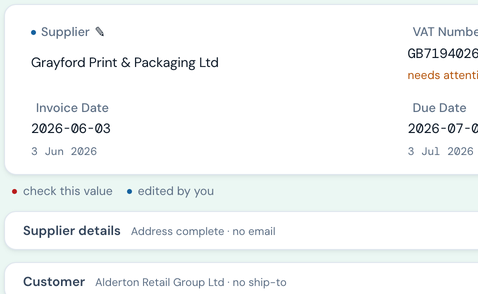
A corrected field with its ✎ marker and blue dot: a value you've verified yourself. -
Save it
Press Save changes in the top bar, to the right of the file chip that names your document. While the save is on its way the label beside it reads Saving… and the button waits; leave the screen then and NoticeDesk asks you to wait a moment for it to finish. The label reads Unsaved changes again if you edit before the save lands, and Saved ✓ once it has. New extraction, the first button in that bar, clears the screen and opens the picker for your next document; if you have edits you haven't saved, it asks first. Dropping or choosing another document over a record with unsaved edits asks the same question, and Stay here keeps the record exactly as it is. If the screen changes while that question is open (a workspace switch, for example), the file you chose is not read; choose it again. The extraction, including your edits and the compliance results, is stored in History, where you can reopen it read-only or re-download its exports any time.

Save changes sits in the top bar, next to Export ▾, after New extraction and the file chip. Typed AI fixes live in the AI Companion feed, opened from the same top bar. TipIf someone else (or another approval action) changed this invoice while you were editing it, Save changes will tell you it was "changed elsewhere" and offer to reload. Reload to see the latest version, then re-apply your edit. This keeps two people editing the same invoice from silently overwriting each other's work.
-
Export it
Use Export ▾ (top right, beside Save changes) to download a Finance-Ready CSV, a Sage 50 import file, a Xero bill import file, a QuickBooks® Online bill import file or a FreeAgent bill-ready sheet.
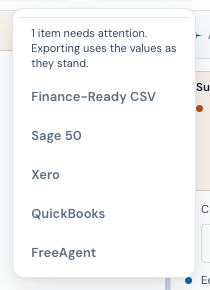
The Export menu opens from the top bar and follows you across Extract, History and batches.
What the compliance card is telling you
The band at the top of the record shows the score once the read finishes, for example All 16 checks passed ✓ or 15 of 16 checks passed · needs attention: VAT Registration. Show checks beside it opens the full list whenever you want it; the band alone tells you what needs attention. That's NoticeDesk's compliance checks (labelled VAT Guardian on screen) running against the document (16 on an invoice, a 17th on a credit note): the arithmetic, the VAT number, and the particulars HMRC's VAT guide (Notice 700) expects on a full VAT invoice. They have their own guide.
Is my PDF kept?
No. Once a document has been processed, the file is deleted from our servers and only the extracted data and the check results stay in your History. If an extraction fails, the file is kept so we can diagnose it, then removed within 90 days. Keep your own copy of the invoice: the document itself is part of your VAT records. The Privacy Notice has the full retention details.
If a document defeats extraction
Very occasionally a document can't be turned into clean structured data. When that happens NoticeDesk opens manual review: the original document on one side and a Try extraction again button on the other, with the raw output folded away under an advanced section if you need to put it right by hand.
If NoticeDesk says it is busy
Rarely, an action answers "NoticeDesk is busy right now. Try again in a few seconds." That means the service was briefly at capacity and your request was turned away rather than kept waiting. Nothing is charged for a request that ends this way. Wait a few seconds and try the same action again; if it keeps happening, email [email protected].
More than one invoice?
Select several files at once (or drop a whole folder) and NoticeDesk processes them as a batch with a summary of totals, suppliers and anything that needs review. Batch upload is included on Silver plans and above.