Supported files & limits
PDFs and images, checked by content the moment you select them. Also the limits, and a fix for every 'unreadable file' cause.
Last updated 9 October 2026 · 5 min read
What you can upload
| Type | Notes |
|---|---|
| Native or scanned, up to 100 pages per document | |
| JPEG / PNG / WEBP / HEIC | Photos and scans: a clear phone photo of a receipt works, straight from the camera roll. HEIC (and HEIF) is what an iPhone saves by default, so there is nothing to convert first, and the upload preview shows the photo in every browser when you select a single file (a photo over 25 megapixels shows a placeholder instead, except in Safari). A HEIC photo over 48 megapixels is too large to process. On an iPhone this only happens in the camera's 48 MP high-resolution photo mode; a normal photo (24 MP on every iPhone since the 15) is well under the limit. Turn the 48 MP mode off in Settings > Camera > Formats and retake, or export the photo smaller before uploading. |
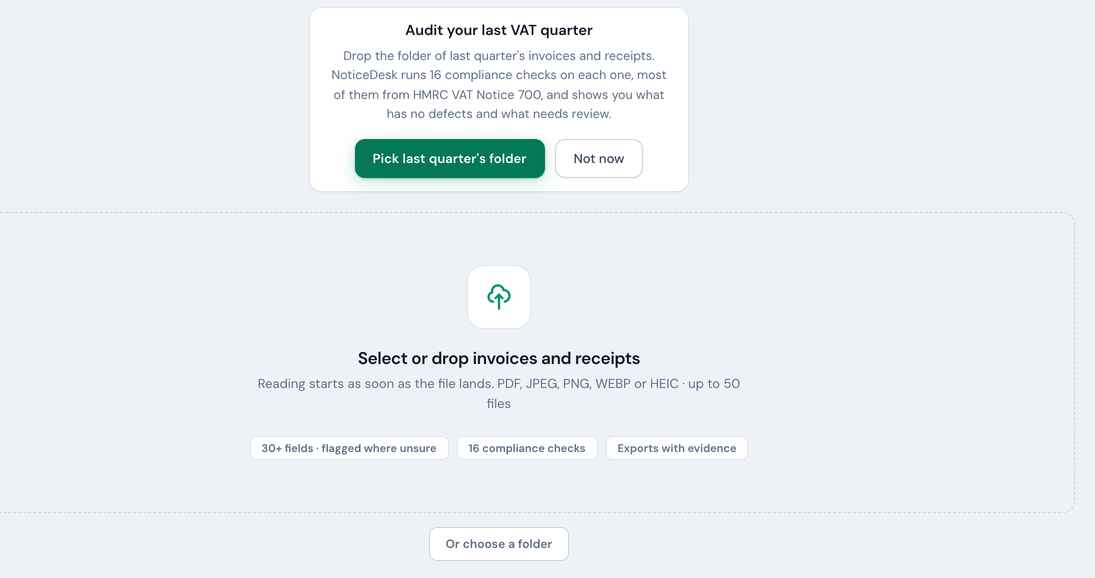
Six limits to know: 100 pages per PDF, 20 MB per file, 14 MB for a photo or scanned image once it is prepared for reading, 100 megapixels per JPEG, PNG or WEBP image, 50 files per batch run, and 48 megapixels per HEIC photo, or 25 for one with transparency or 10-bit colour. The 14 MB image limit is the size the reading step can take in one go; a PDF is not subject to it.
Files are checked by content, not name
Every file is inspected by its actual content before anything runs: a Word document renamed .pdf is caught immediately, not after a wasted extraction. For a single file, the check happens at select time, so an unreadable one is flagged before any reading starts. The one exception is a HEIC photo cut short: it is caught as the read starts, still before anything is charged. A large single document also shows its page count and a rough credit estimate in the top bar's file chip. In a batch, any unreadable file is caught during the run and marked Skipped, and the rest carry on.
"Unreadable file": causes and fixes
| Cause | Fix |
|---|---|
| Password-protected PDF | The product tells you directly: "This PDF is password-protected. Open it, re-save or print it to PDF without a password, then upload again." This is only for a PDF that needs a password to open. A PDF locked only against printing or copying (common for statements from banking and accounting systems) opens without one, so it is accepted and read as normal. |
| PDF that grows too large once unlocked | The product says: "This PDF is too large to read once its restrictions are removed. Ask the sender for a copy without restrictions, or save it again from the program that made it." A PDF locked against printing or copying is read from a copy with those restrictions removed, and a few files (long tagged statements, say) grow several times larger once unlocked, past what can be read. A copy without restrictions, from whoever sent it or from the program that made it, avoids the problem. |
| Corrupt or truncated file | Re-download or re-export it from the source system, then try again |
| Wrong format renamed | Export a real PDF from the original application (or photograph the paper) |
| Empty (0-byte) file | Usually a failed download or a folder pretending to be a file; re-fetch the real document |
| HEIC photo over 48 megapixels | The photo is at a very high resolution (on an iPhone, the camera's 48 MP mode). Turn that mode off in Settings > Camera > Formats and take the photo again, or export it smaller. |
| HEIC with transparency or 10-bit colour, over 25 megapixels | The product says: "This photo is too large to process (max 25 megapixels for a photo with transparency or 10-bit colour). Export it smaller or as a standard JPEG, then upload again." These photos take far more memory to read. A normal camera photo is not affected. |
| Image over 100 megapixels | The product says: "This image is too large to process (over 100 megapixels). Export it at a lower resolution, or save it as a PDF, then upload again." The file is fine, only very large (a scan at a very high resolution, say). It is checked at select time. |
| Photo or scan over 14 MB | The product says: "This image is too large to process (over 14 MB once prepared for reading). Export it smaller, or save it as a PDF, then upload again." A JPEG, PNG or WEBP is checked at select time; a HEIC is checked as the read starts, because its prepared size is only known once it has been converted. Saving the scan as a PDF sidesteps the limit entirely. |
| Couldn't be read just now | Now and then the reading step turns a file away and asks for another try. The product says: "We couldn't read this image just now. Try again; if it happens again, re-save it and upload it again." (or the same for a PDF). Upload the same file again first; if the message comes back, re-save or re-export the file and upload that. |
| Too large to read (any file) | Rarely, the reading step itself turns a file away for its size and the product says: "This file is too large to process. Export it smaller, then upload again." The file is fine, just big: export it at a lower resolution or split it, then try again. |
Nothing is charged for a rejected file: validation happens before extraction, so an unreadable document costs no credits.
If a readable file still won't extract
A file can be perfectly valid yet still defeat structured extraction (a very rough scan, an exotic layout). That's a different, rarer situation with its own recovery path: see manual review.
A PDF of more than four pages is read in parts at the same time, so a 25-page invoice is ready in about half a minute. Documents of up to 40 pages are read this way while you wait. A longer one is read in one go, which suits a document with few lines; a long one dense with lines can take longer than NoticeDesk allows. You'll see This document took too long to read. Nothing is charged and nothing is saved, so press Try again; if it happens again, email [email protected] and we'll read it for you.