Getting bills into FreeAgent
FreeAgent has no bill CSV importer, so this export is a bill-ready sheet laid out to FreeAgent's own bill fields, for keying bills in or for a script that posts them to FreeAgent's API.
Last updated 9 October 2026 · 11 min read
What this file is, and is not
FreeAgent has no bill CSV importer. Its native CSV imports cover bank statements, contacts, opening balances, projects, mileage and out-of-pocket expenses (and, for accountancy-practice partners, sales invoices), not supplier bills. So this export is a bill-ready sheet: a CSV laid out to FreeAgent's own bill fields, so that you or your accountant can key each bill in from it, or a script can post them to FreeAgent's API, without translating any column. It is not a file you upload to FreeAgent.
One row per invoice line (17 columns). The first fifteen headers are FreeAgent's own field names (contact, reference, dated_on, due_on, currency, ec_status, category, description, quantity, total_value, total_value_ex_tax, sales_tax_rate, sales_tax_status, manual_sales_tax_amount, comments), and the last two are ours, added at the end so the FreeAgent block reads the same whether or not you use them: noticedesk_document_type (invoice, credit note or receipt) and noticedesk_original_reference (the invoice a credit note corrects).
Export from an extraction
-
Open the export menu
With an extraction on screen (or open from History), press Export ▾ and choose FreeAgent.
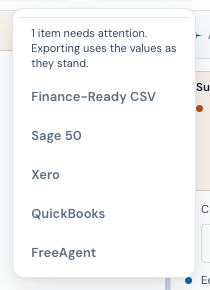
The Export menu in the top bar. -
Enter the spending category
Type the name of the FreeAgent spending category this spend belongs to, exactly as it appears in your FreeAgent account (for example
Office Costs). Every line of a FreeAgent bill needs a category, so the field is required: leaving it empty shows an inline message and the download waits; the message clears as soon as you type. NoticeDesk remembers the category you use for each supplier and pre-fills it next time.Then choose the VAT treatment; the table below shows what each one writes. Before you download, the dialog may show an amber note: an invoice showing no VAT under the standard-rate treatment, a sterling invoice carrying VAT under Out of scope (which keeps it off your return) or under Zero-rated 0% or Exempt (which say none was charged), lines at different VAT rates, a line whose printed VAT rate could not be read (a rate written as Exempt, E, Z or Out of scope, or a line coded T0, T2 or T9, is read as zero; Std, S or T1 is not, because that names a rate rather than stating it), a VAT figure that could not be read as a number, or a till receipt whose line amounts add up to neither its total nor its total less VAT. It also names a foreign-currency invoice that shows tax (a US sales tax included): under Out of scope it says the sheet adds that tax to the cost of the lines, under Zero-rated 0% or Exempt that the treatment says none was charged, and under Standard 20% or Reduced 5% that the treatment reclaims tax charged abroad as UK VAT. Under its no-UK-VAT, zero-rated and exempt choices it says the tax may be UK VAT you can reclaim when the supplier's VAT number starts GB, XI or UK or its country is the UK, and asks when the number has no country prefix; under one that charges VAT (which already reclaims it) it asks only about a number with no country prefix; suggests the reverse charge may apply to a foreign invoice that shows no tax (set it on the bill in FreeAgent), says what the sheet posts when the lines add up to more or less than the invoice's net, and may say what the sheet posts against the invoice's printed total, where the two differ by more than 5p and no other sentence already says what the sheet posts (a net read before a discount, say). It never changes the treatment for you; it names what it noticed and leaves the choice with you. A second note names any bill with no due date or a date that could not be read as one, any bill not in sterling under a taxable treatment (its manual tax cells are left blank), any line with a unit price but no amount (the sheet carries nothing for the line's own amount; where no line on the invoice shows an amount, the VAT it prints is still carried, under Out of scope as part of the cost), and any bill with more than 40 lines.
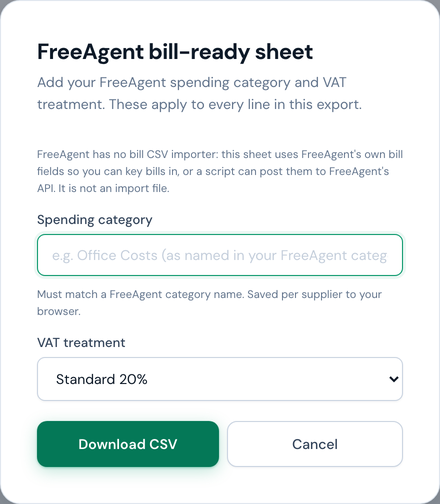
Spending category and VAT treatment: the two things every FreeAgent bill line needs from you. -
Download
The file is named FREEAGENT_BILL_<reference>.csv for a single document, or BATCH_FREEAGENT_<date>.csv for a batch. Then take one of the two routes below.
Route 1: keying a bill in from the sheet
In FreeAgent, add a new bill. The columns map onto the bill form directly:
| Column | In FreeAgent's bill form |
|---|---|
| contact | The supplier contact. It has to exist already, or add it from the form. |
| reference | Reference: the supplier's invoice number, as printed. |
| dated_on / due_on | Bill date and Due on, written day first (05/09/2026), the order FreeAgent's own CSV importers use. A blank due_on means the invoice had no due date; FreeAgent's form fills one in for you, and you can change it. |
| currency | The bill's currency: a currency code in capitals, or, where the invoice records a mark that is not a code, the mark as recorded. GBP where the invoice stated none. |
| ec_status | Always UK/Non-EC. Reverse charge is a bill-level setting in FreeAgent (one treatment per bill): if a bill needs it, set it on the form yourself; the sheet never guesses it. |
| category / description / quantity | One line item each: Spending Category, Details, Quantity. The supplier's product code rides at the end of the description, as in Steel bracket, 90mm (SB-90). |
| total_value / total_value_ex_tax | The line's gross and net. The form has a toggle for entering totals inclusive or exclusive of VAT, so use whichever column matches the toggle you set. |
| sales_tax_rate / sales_tax_status / manual_sales_tax_amount | The line's VAT: the rate as a bare number (20, 5, 0), the status, and the VAT amount. FreeAgent's line VAT option Amount (UK accounts) takes the figure directly, so the VAT lands exactly as the supplier printed it. FreeAgent takes that figure in your own currency, so on a bill in another currency under a taxable treatment the manual_sales_tax_amount cell is left blank and FreeAgent works the VAT out from the rate. On those lines total_value is left blank too (at 0% it is the net), and the dialog names the VAT FreeAgent will work out when it differs from the printed tax; a line whose rate is written as Exempt or Out of scope keeps its figure. On such a bill, key the bill with amounts excluding VAT: FreeAgent sets a bill in another currency to amounts including VAT, and would then take the net as if the VAT were inside it. |
| comments | Bill-level comments. On a credit note this names the invoice it corrects. |
Route 2: posting through FreeAgent's API
For a developer: FreeAgent's REST API takes bills at POST /v2/bills with the line items nested as bill_items, and the sheet's headers are those fields' names. Two values need resolving first: contact and category are URIs in the API, so a script looks up the contact by name and the category by name and substitutes them. Dates go in as YYYY-MM-DD (the sheet writes them day first for people; convert them). A bill needs contact, reference, dated_on, due_on and at least one item with a category and a total_value (or total_value_ex_tax); manual_sales_tax_amount overrides the rate when both are sent; sales_tax_status is TAXABLE, EXEMPT or OUT_OF_SCOPE. A credit note is a bill whose item totals are negative (there is no separate object), and a reverse-charge bill sets ec_status to Reverse Charge at bill level. FreeAgent's own API documentation is the authority on all of this; the sheet is laid out to it, nothing more.
The no-CSV alternative: Smart Capture
If you would rather not key or script anything, FreeAgent's Smart Capture takes the invoice files themselves: upload the PDFs to Files in FreeAgent and use Create bill on each one. FreeAgent describes it as reading the date and total and suggesting a contact and category. You lose nothing by doing both; NoticeDesk's checks and evidence still stand on the extraction here, and the sheet is there for the figures.
VAT treatment
FreeAgent treats zero-rated, exempt and out-of-scope purchases as three different things (they land in different places on the VAT return), so the sheet carries both a rate and a status:
| Treatment | sales_tax_rate | sales_tax_status | Use for |
|---|---|---|---|
| Standard 20% | 20 | TAXABLE | Standard-rated UK purchases |
| Reduced 5% | 5 | TAXABLE | Reduced-rate purchases |
| Zero-rated 0% | 0 | TAXABLE | Zero-rated purchases |
| Exempt | blank | EXEMPT | Exempt purchases |
| Out of scope | blank | OUT_OF_SCOPE | Outside the scope of UK VAT; pre-selected when every invoice in the export is in a currency other than sterling. Any tax an invoice shows is added to the cost of its lines, with no VAT written. An export that includes a sterling invoice opens on Standard 20%, so check it before you download |
Where the invoice prints a rate on every line, the rates differ, and they reconcile with the invoice's stated VAT, each line carries its own printed rate and the VAT that rate produced. Otherwise (no printed rates, one rate throughout, or printed rates that do not reconcile with the stated VAT) the treatment's rate is written on every line and the invoice's own stated VAT is shared across the lines by value, so a line's VAT is its share of that figure rather than the rate applied to the line; the dialog tells you which applied, and names any line whose printed rate differs from the treatment you chose. Under Exempt and Out of scope the rate cell is left blank, because in FreeAgent those are statuses, not rates.
Where each line carries its own printed rate, a line whose rate is written as a word rather than a figure keeps its meaning on its own row: a line marked Exempt (or E) is written with a blank rate and the status EXEMPT, a line marked Out of scope (or OS, No VAT) with a blank rate and OUT_OF_SCOPE, and a line marked Zero-rated (or Z) with a rate of 0 and TAXABLE, exactly as the treatment table above writes them. Those lines carry no VAT. Where the sheet has fallen back to the treatment's rate, the treatment's status is written on every line, and the dialog says which applied.
Credit notes
A credit note is written the way FreeAgent represents one: a bill whose amounts are negative. Every money column (total_value, total_value_ex_tax and manual_sales_tax_amount) carries a minus sign (a line that runs the other way, such as a restocking fee on returned goods, is written positive), and comments reads Credit note against <invoice number> (FreeAgent has no original-invoice field, so the link rides there; it is repeated in noticedesk_original_reference). Key it in as a bill with negative amounts, or post it as a bill with negative item totals, so you can net it off against the original in FreeAgent.
Due dates and the 40-line limit
FreeAgent's API requires a due date on every bill. Where an invoice has none, the due_on cell is left blank rather than guessed from the bill date, and the dialog names how many bills are affected before you download; FreeAgent's own bill form fills one in for you (and lets you change it), but a script must supply one. A date that is there but could not be read as a date (TBC, say) is written as it is, and the dialog names it too: FreeAgent needs a real date there, so correct it and save first (a saved record reopens for editing when you upload the same file again). A FreeAgent bill also holds at most 40 line items: an invoice with more is still exported in full, and the dialog names it with its line count; split it into two bills in FreeAgent.
Exporting a whole batch
From a batch summary or a History batch group, the same export produces one combined sheet for every invoice in the run. The category prompt appears first, exactly as it does for a single invoice; the category and treatment you choose apply to every row in the combined file. If any invoice in the export isn’t in GBP, a currency check appears before the prompt: FreeAgent bills carry a currency of their own, and a bill entered without one defaults to your account's native currency, so check the currency column before you key it in or post it. You can go back or export anyway; nothing is ever locked.
Review the extracted data first: the amber and red markers tell you where to look. You're responsible for what's posted into your accounts; NoticeDesk makes the checking fast, it doesn't replace it.