Signing in with email codes
An 8-digit code arrives by email and you type it in. No passwords. Also how to change your sign-in email and what to do when a code doesn't arrive.
Last updated 9 October 2026 · 5 min read
No passwords: 8-digit email codes
NoticeDesk signs you in with an 8-digit code emailed to you each time. There is no password. The email account you already protect is the key.
-
Enter your email
Press Sign in at the top of the page and enter your work email.
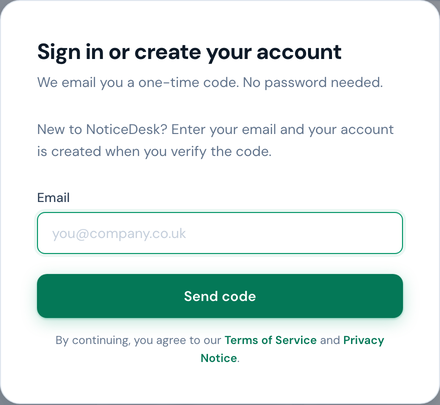
One field. Send code emails you the 8-digit code. -
Type in the code
The code arrives by email within moments. Enter it and press Verify & sign in. Each code works once and then expires.
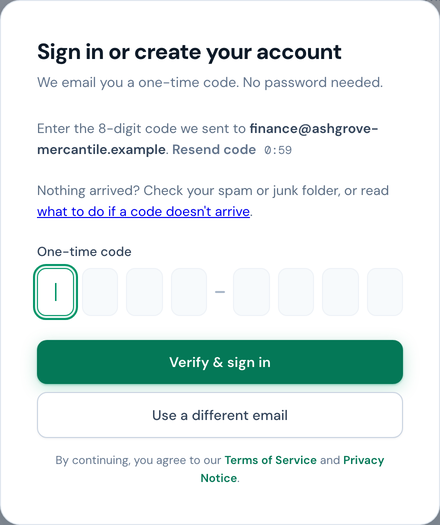
Typo'd your address? Use a different email takes you back a step. No code after a minute? Resend code asks for a fresh one; the link waits a minute after each request, because the email service won't send two codes to one address inside a minute. -
You're in
Your workspace (your own area of NoticeDesk, where your invoices, history and billing live) appears in the sidebar. On the app's own screens (Extract, History and the rest) the sidebar is always open; on the marketing and Support pages it stays tucked away until you press the › chevron beside the NoticeDesk wordmark, and Open NoticeDesk in the same header takes you straight to Extract. You'll stay signed in on that browser (no code needed for every visit), and Sign out lives inside the workspace menu at the bottom of the sidebar (click your workspace name) when you want to end the session.
New to NoticeDesk?
There's no separate sign-up form. Enter your email in the sign-in dialog and verify the code: the first sign-in from a new address creates your own workspace, with you as its owner. Then pick a plan on the pricing page to start extracting: it shows what each plan includes and which plans start with a free trial.
Joining a team
If a colleague invited you, sign in with the same email address the invitation was sent to: you'll land directly in their workspace with the role they gave you. (See team, roles & workspaces.)
One signed-in account per browser
Like your bank or your email, NoticeDesk keeps one signed-in account per browser profile: every tab and window of that profile shares the same session. Open a second tab and you're looking at the same account; there's no way to be two people at once in one profile. Two consequences worth knowing:
- Sign out means everywhere. Signing out in one tab signs you out of every tab of that browser, and the others tell you so when you next look at them. If a tab had work on screen (an invoice you were reading, a batch summary, edits you hadn't saved), it keeps that on screen and shows you a message, rather than clearing it while you're not looking.
- A second account replaces the first. If someone signs in as a different user on the same browser, any tab still open on the old account signs itself out with a notice instead of showing a mix of two people's data.
Need two accounts genuinely side by side (say, testing as two teammates)? Use two browser profiles, or a normal window plus a private/incognito window. Each has its own session, so both stay signed in independently. And if you share one machine at the office, remember two-factor: see two-factor authentication.
Changing your sign-in email
Your email address is your account, so it can't be changed from inside the app. Email [email protected] from your current address, tell us the new one, and we'll move your account across. Your workspace, history and plan stay as they are.
Didn't get a code?
- Check spam/junk: the sender is noticedesk.co.uk. Marking it "not spam" fixes future codes too.
- Give it a minute: email can lag; the newest code is the one that counts.
- Check the address: the code goes to exactly the address you typed, so a typo means it lands in the wrong inbox rather than showing an error.
- Requested several? Each address can be sent three codes an hour and no more than one a minute (the email service won't send two codes to one address inside a minute, so asking again sooner would only tell you a code was sent when it wasn't), and one connection (an office sharing one internet address) thirty an hour. When a limit is reached the sign-in dialog says which one it was ("for this address" or "from your connection") and roughly how long to wait, rather than sending nothing. If it names neither, a wider limit was reached (everyone on your email domain together, or the service as a whole), or the sign-in service itself asked for a short pause; the wait shown still applies.
Still stuck? Email [email protected] from the address you're trying to sign in with.
"You're no longer a member of a workspace"
The code was right, but the workspace you belonged to has removed you (or you left it), so there is nowhere to sign you in to. Ask an owner or admin of that workspace to invite you again from their Team screen: because your account already exists, an invite adds you straight back with no new code to enter, and your next sign-in works as before. If you think the removal was a mistake or you can't reach an owner, email [email protected] (the address the message gives) and we'll sort it out.
"Couldn't renew your session"
Once you're signed in, NoticeDesk renews your sign-in quietly in the background; you never see it. If that renewal fails for a moment (a wobbly connection, or the sign-in service is briefly busy) you'll see a notice saying it couldn't renew your session. Nothing is lost: the invoice on screen and any unsaved edits stay exactly as they were. Wait a moment and try the same action again. While the trouble lasts, the background renewal itself waits a few minutes between its own quiet tries (so an office sharing one connection isn't locked out by every open tab retrying at once); your own next click always tries straight away. Only a notice that your session has expired means you need to sign in again.